Feedplans
Description
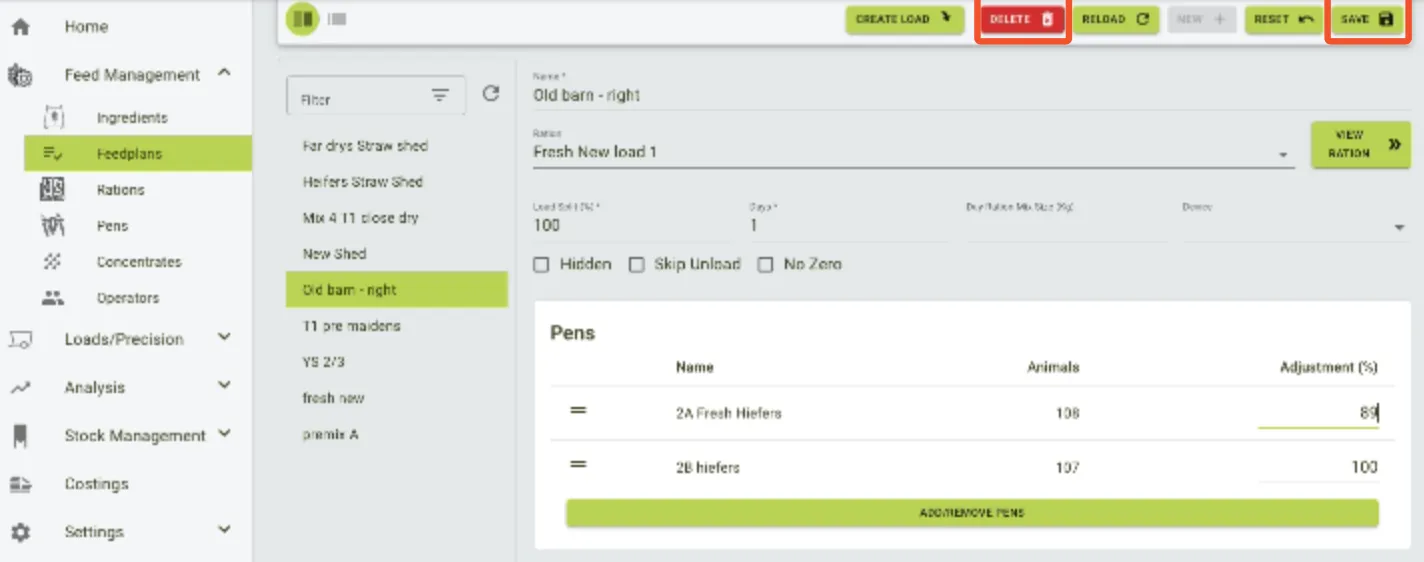
The Feedplans section builds upon the Ration by enabling users to assign specific pens to predefined rations, thereby creating comprehensive feedplans for the farm. Here are the key details.
The Feedplan page provides an interface where users can:
- Link rations created in the Ration Management section to specific pens.
- Set adjustment percentages for feed quantities based on real-world observations (e.g., leftover feed).
- Customise feed distribution across multiple pens.
How to Create a Feedplan
- Add New Feedplan:
- Click New on the top menu.
- Assign a unique name to the feedplan.
- Select a Ration from the dropdown list.
- Set the following fields:
- Load Split (%): Percentage of the total feed assigned to the feedplan.
- Days: Specify the number of days the feedplan applies.
- Device: Choose the device used for feed distribution.
- Day Ration Mix Size (Kg): Automatically calculated based on the number of animals and the ration.
- Add Pens:
- Use the Add/Remove Pens button to associate pens with the feedplan.
- Specify the number of animals in each pen and the adjustment percentage for feed distribution.
- Save the Feedplan:
- Once all details are filled in, click Save.
Additional Options
- Hidden: Exclude the feedplan from being displayed in the app.
- Skip Unload: Specify that only loading operations apply, and unloading is not recorded.
- No Zero: Ensure the wagon’s weight does not reset to zero.
Ration Feedplan Creation
-
Click
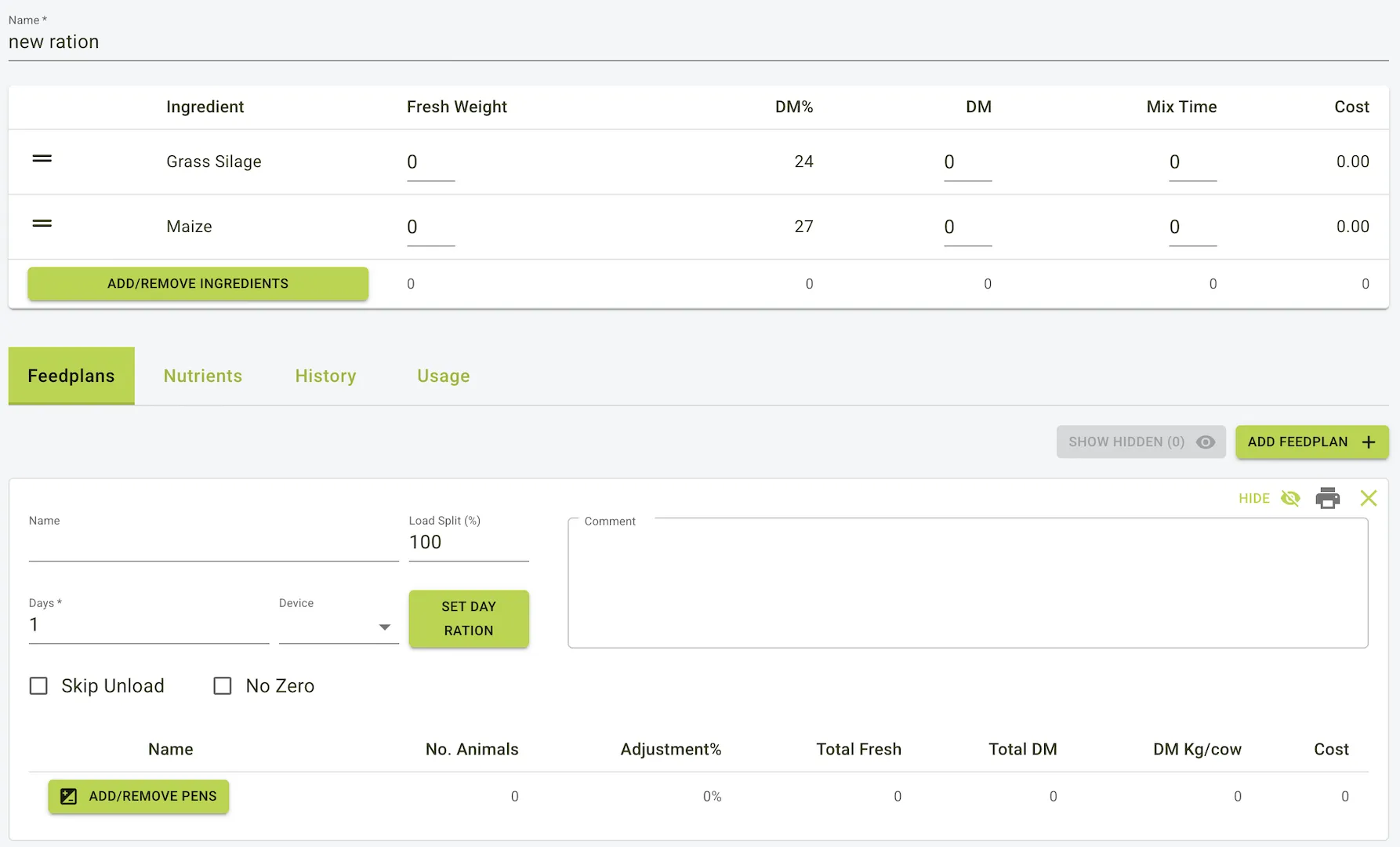
Add Feedplanto associate a ration with specific pens.- Feedplans multiply the ration (per animal) by the number of animals in a pen, calculating the total feed required for the pen.
- Fields in the feed plan:
- Load Split (%): Splits the feed quantity across multiple loads if necessary.
- Days: Number of days the feed plan is valid for.
- Device: Associated feeding device.
- Hide: Marks the ingredient as hidden in the app.
- Skip Unload: Indicates that the farmer only loads the ingredients and does not unload them.
- No Zero: TBD.
- Adjustment Percentage:
- The Adjustment% field allows farmers to fine-tune feed quantities based
on animal behavior and feed consumption.
- Example: If cows consistently leave leftovers, the farmer can reduce the adjustment to 80% to provide only 80% of the planned feed.
- The Adjustment% field allows farmers to fine-tune feed quantities based
on animal behavior and feed consumption.
- Calculation Summary:
- Total Fresh: Total fresh weight of feed for the pen.
- Total DM: Total dry matter weight for the pen.
- DM Kg/Cow: Dry matter weight per cow.
- Cost: Total cost of the feed plan for the pen.
-
Give the feedplan a Name.
- The name should be descriptive and indicate the purpose of the feedplan.
- Example: “Morning Feed for Dairy Cows”.
- Other fields include:
- Load Split: Percentage of the total feed assigned to the feedplan.
- Days: Number of days the feedplan applies.
- Device: Choose the device used for feed distribution.
- Skip Unload: Specify that only loading operations apply, and unloading is not recorded.
- No Zero: TBD.
-
Optionally you can click
Add/Remove Pensto change the pens included in this feedplan. -
Click
Saveto create the feedplan and associate it to the ration its been created with. -
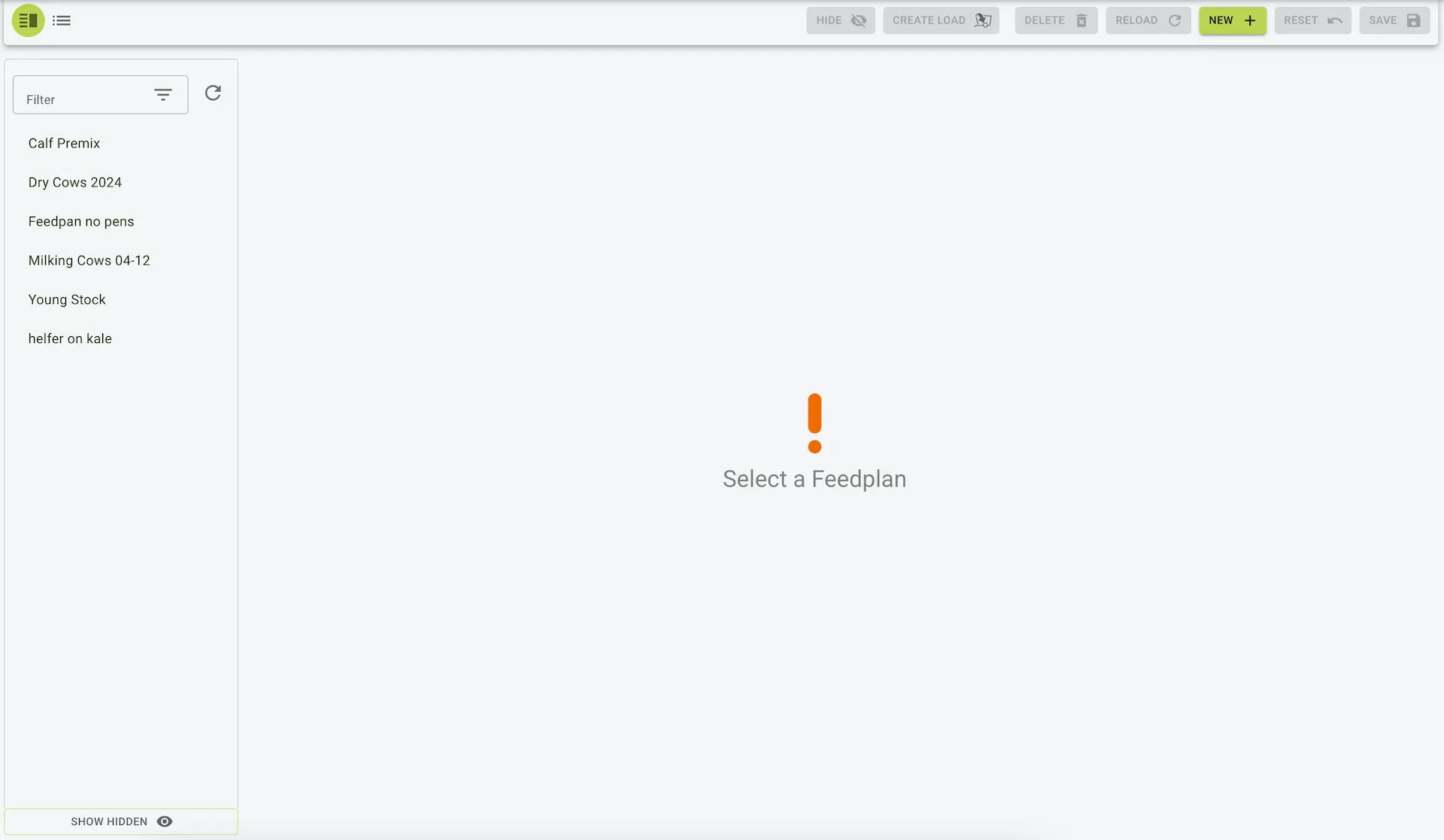
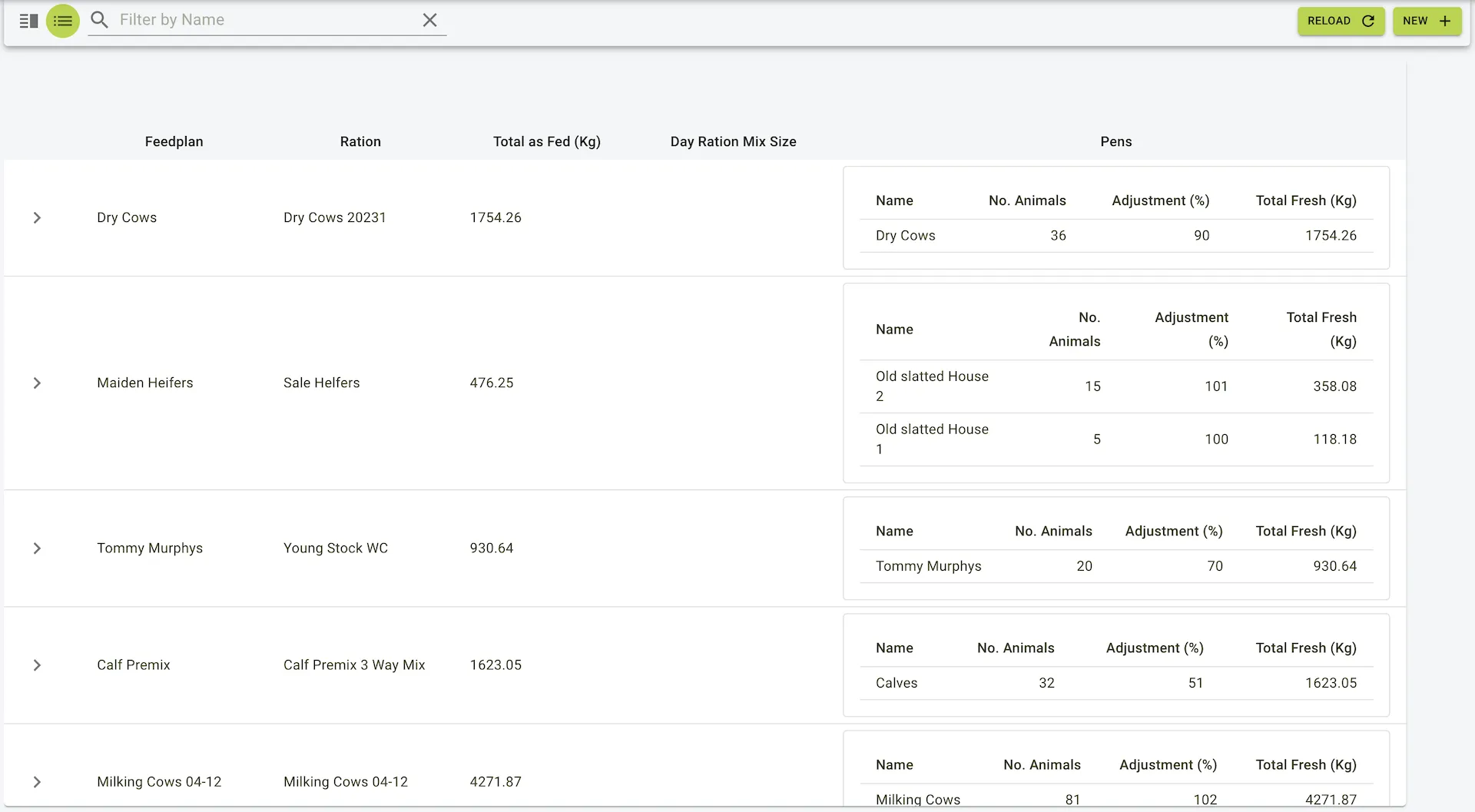
The feedplan will now be visible in the Feedplans section, where you can view, edit, or delete it as needed.
Example view of the Ration Feedplan form
Example view of the feedplans page
Adding an feedplan
To add an feedplan:
- Click the
Newbutton on the toolbar. - Enter the feedplan details.
- Click the
Savebutton on the toolbar to save the feedplan.
- Click the
Newbutton on the toolbar. - When redirected to menu view form, enter feedplan details.
- Click the
Savebutton on the panel to save the feedplan.
Example view of the new feedplan form
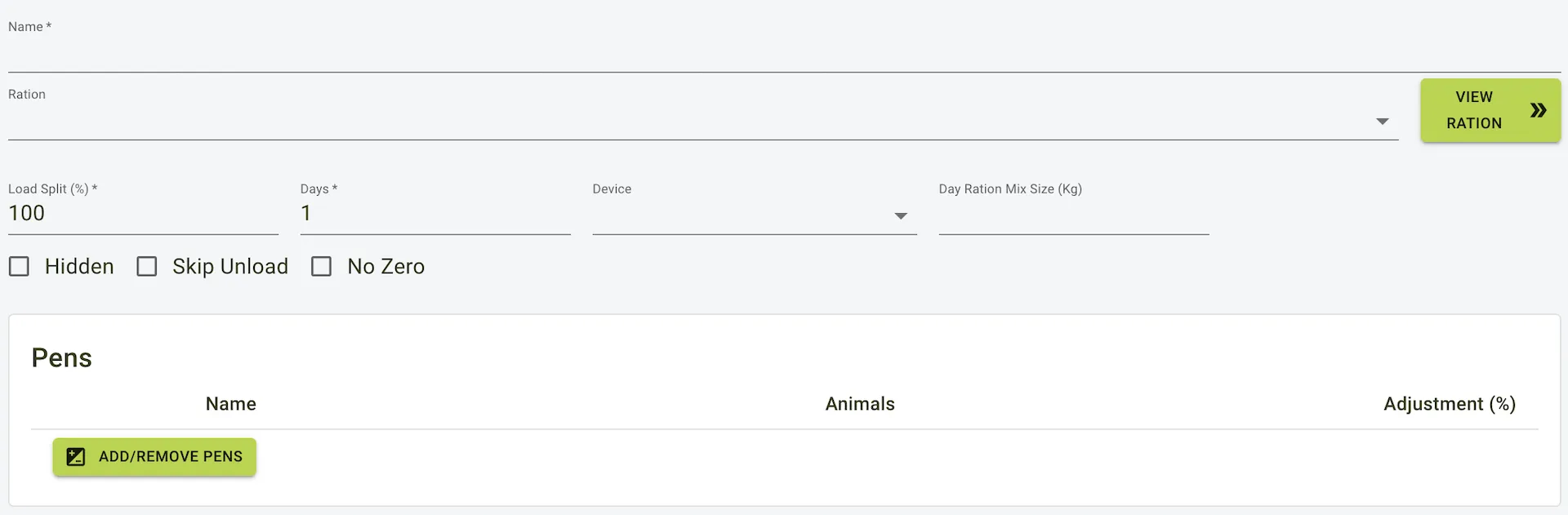
Assigning pens to a feedplan
To assign pens to a feedplan:
- Click Add/Remove Pens.
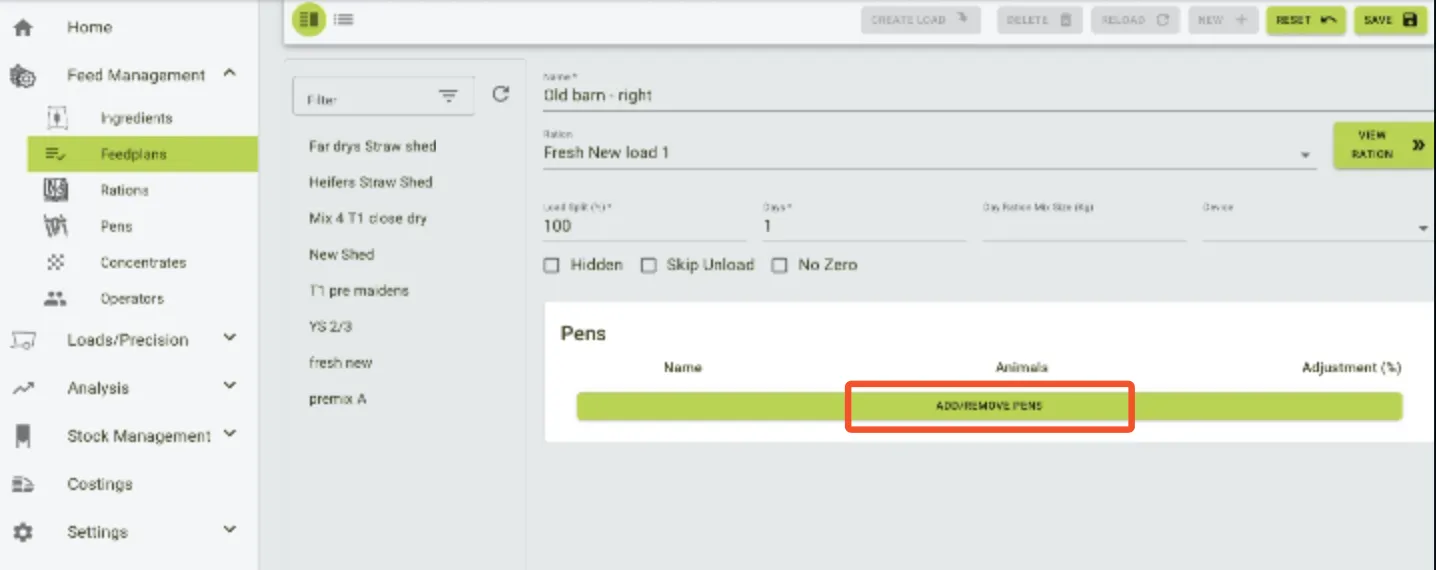
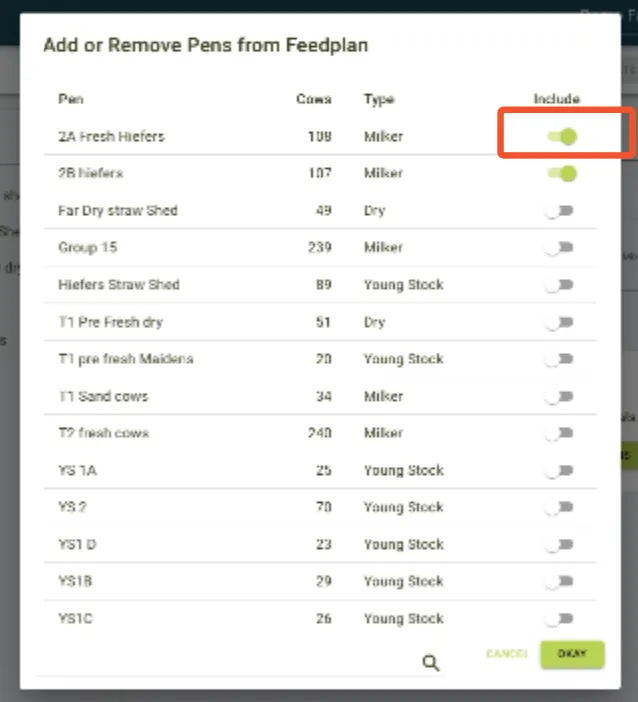
- Select and add tha pens by switching on the toggle.
- To remove a pen, switch off the toggle.
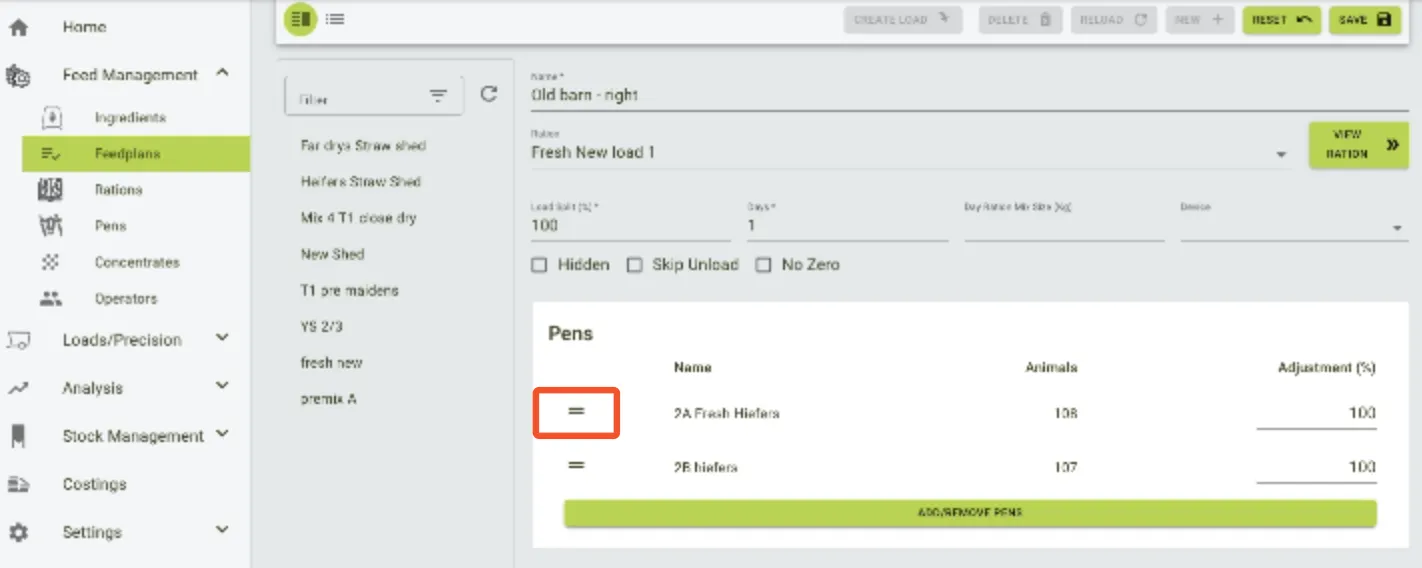
- Change the order of pens by holding down onto the two lines and dragging the item up or down the list.
- We recommend to creating an order on the list, which follows the feeding order ion the stable(s).
- The size of the ration can be adjusted for the different pens by changing the %.
- For editing, click in the field, then type the correct value.
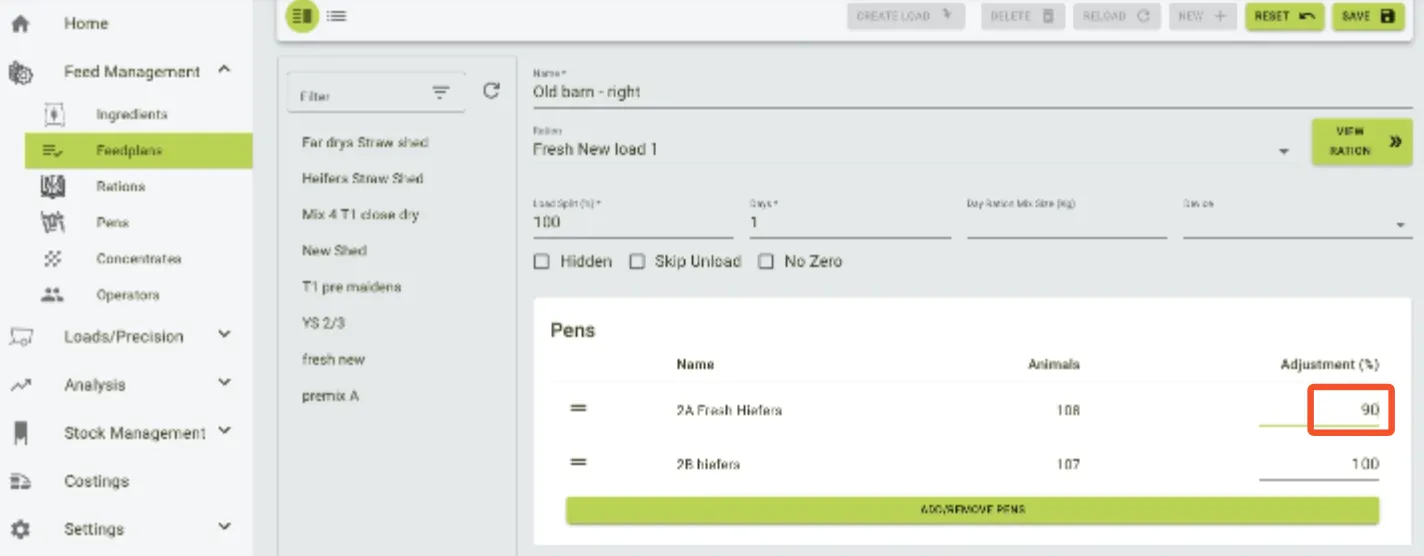
- If you are done with the plan, save it. In case you no longer need a feedplan, select it from the list and hit delete.