

Getting Started
Introduction
Welcome to the Feedlync documentation! This guide will help you get started with the Feedlync applications.
Prerequisites
Before you start using Feedlync, you need to have the following prerequisites:
- A Feedlync account
- A supported device (desktop, tablet, or mobile)
- An internet connection
- A web browser (for desktop and tablet) or the Feedlync app (for mobile)
Searching the documentation
Use the search bar in the site header (or press Cmd+K on macOS / Ctrl+K on Windows and Linux) to open the search modal. Results update as you type and mirror what you see in the screenshot below.
- Results are grouped by page and section titles so you can quickly see the context (for example, Dashboard or Physical Data).
- Matching words are highlighted in the preview text to show why a result is returned.
- Navigate with your keyboard arrows or mouse; press Enter to open the highlighted result and Esc to close the modal.
- Search only indexes these documentation pages. It does not search your Feedlync account or farm data.
- Works on desktop and mobile; tap the search icon on touch devices.
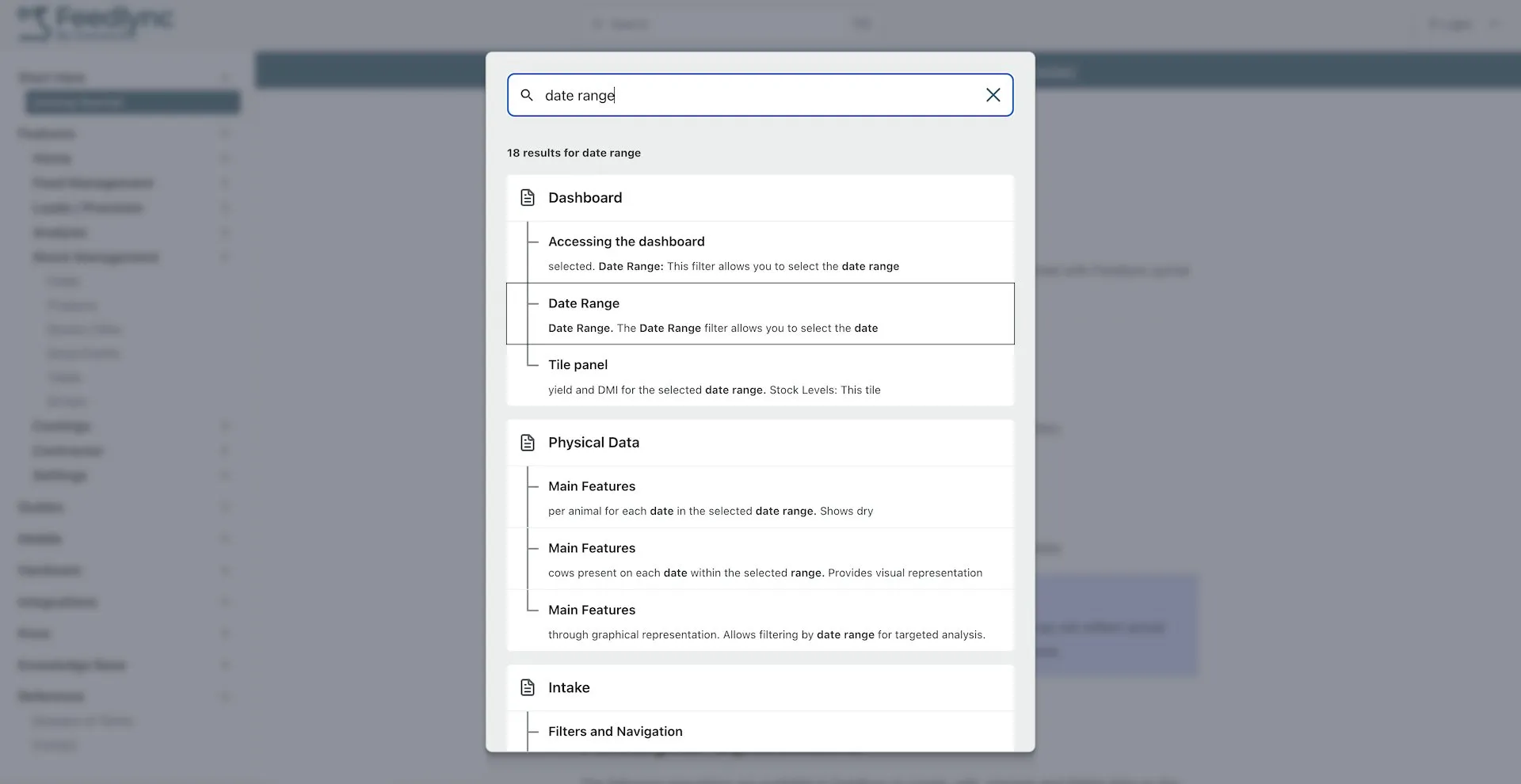 Example of the documentation search functionality, using date range as the search term.
General Operations
The following operations are available to create, edit, manage and delete data in the system:
- Hide: Temporarily hide the selected item from the list and app.
- Delete: Permanently remove the selected item from the system.
- Duplicate: Create a copy of the selected item with identical details.
- Reload: Refresh the item list and details.
- New: Create a new item entry.
- Reset: Revert unsaved changes to their original values.
- Save: Save any changes made to the item details.
- Print: Print the data to PDF.
- Export: Export the data to an Excel file.
- Date Range: Filter data by a date range.
Guide Links
Recalculate A guide to Recalculate in Feedlync
DMS A guide to DMS in Feedlync
Dry Matter A guide to Dry Matter in Feedlync