

Non-TMR Feeds
Description
The Non-TMR Feeds section enables farmers to define and manage the quantity of non-TMR feeds provided to animals. This feature assists in optimizing feeding strategies and calculating feed costs.
Key Features
Feed Categorization
Non-TMR feeds are categorized into four main types:
- Forages: Grass, hay, silage, and other forage-based feeds
- Concentrates: Energy and protein-rich feeds typically given during milking
- Minerals: Mineral supplements for nutritional balance
- Others: Additional ingredients that don’t fit into the other categories
Quantity Management
- Set feed amounts per individual animal or for entire groups
- Track both fresh weight and dry matter weight
- Monitor costs and nutritional contributions
Integrations
- All non-TMR feeds contribute to the total nutritional analysis
- Daily records are automatically created for consumption tracking
- Data integrates with feed history and cost reporting
Use Case Examples
Managing Different Feed Categories:
- Navigate between the four tabs (Forages, Concentrates, Minerals, Others) to manage different types of feeds.
- Each category maintains separate records for clear organization of your feeding program.
Adding a New Feed:
- Click
Newin the top-right corner. - Select the appropriate tab for the feed category.
- Select the Pen and Ingredient from the dropdown menus.
- Enter the amount per cow and the dry matter percentage.
- Click
Saveto add the feed to your program.
Editing an Existing Feed:
- Select a feed record from any category tab.
- Click the edit icon (pencil) to modify the details.
- Update the Pen, Ingredient, or quantities as required.
- Save the changes by clicking
Save.
Deleting a Feed:
- Select the feed record you wish to remove.
- Click
Deleteand confirm the action.
Feature View
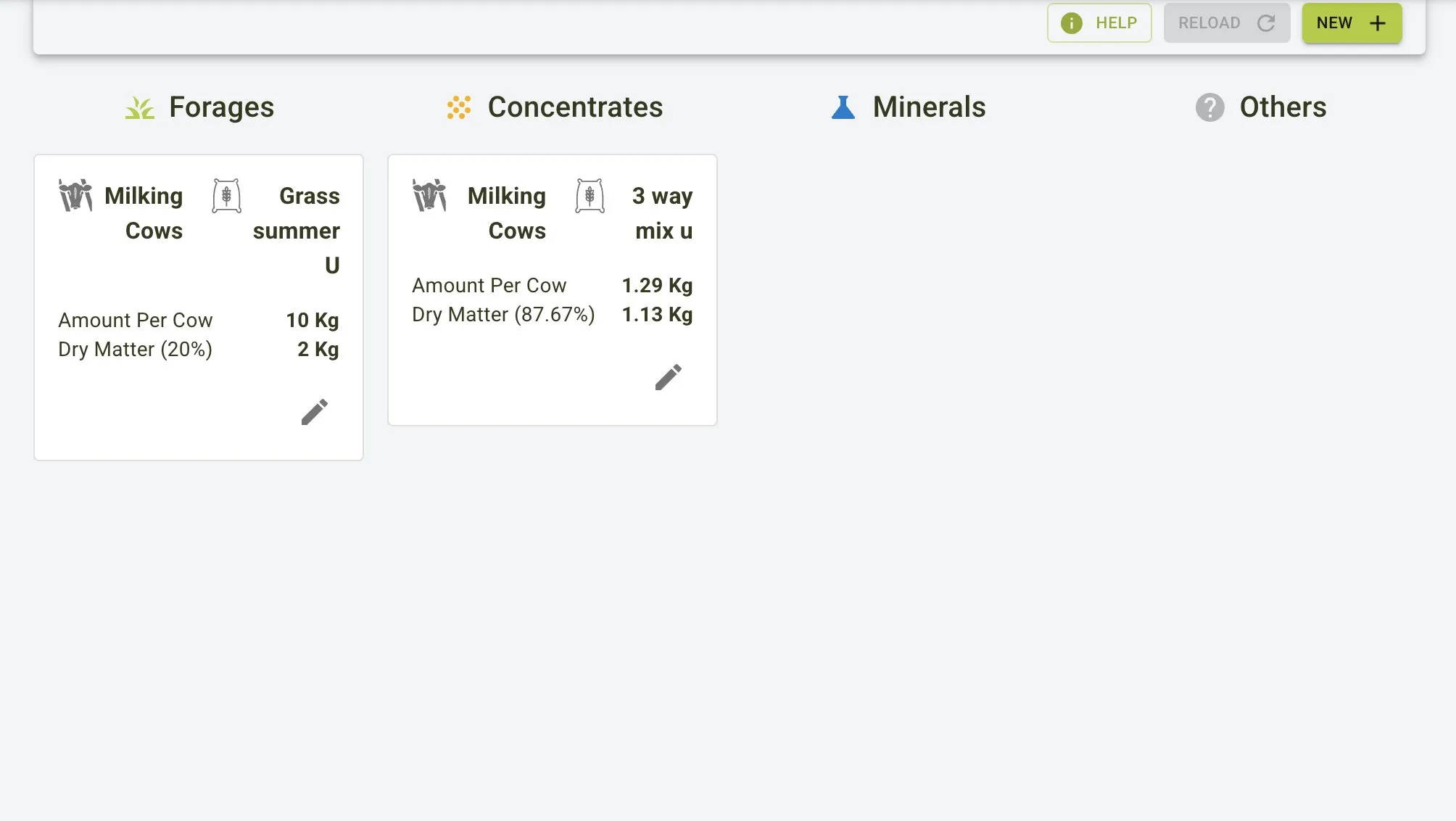
The screenshot above shows how different feed categories are organized in tabs: Forages, Concentrates, Minerals, and Others. Each category displays the assigned feeds with their specifications.
Common Operations
Adding a New Non-TMR Feed
To add a new non-TMR feed:
- Click the
Newbutton on the toolbar. - A dialog titled “New Non-TMR Feed” will appear.
- Select the appropriate Pen (Pen) and feed (Ingredients) from the dropdown menus.
- Enter the Amount Fresh and Dry Matter (%) values.
- Select whether the amount is per individual animal (
Per Cow) or for the entire group (Total). - Click the
Savebutton to add the feed.
New Non-TMR Form
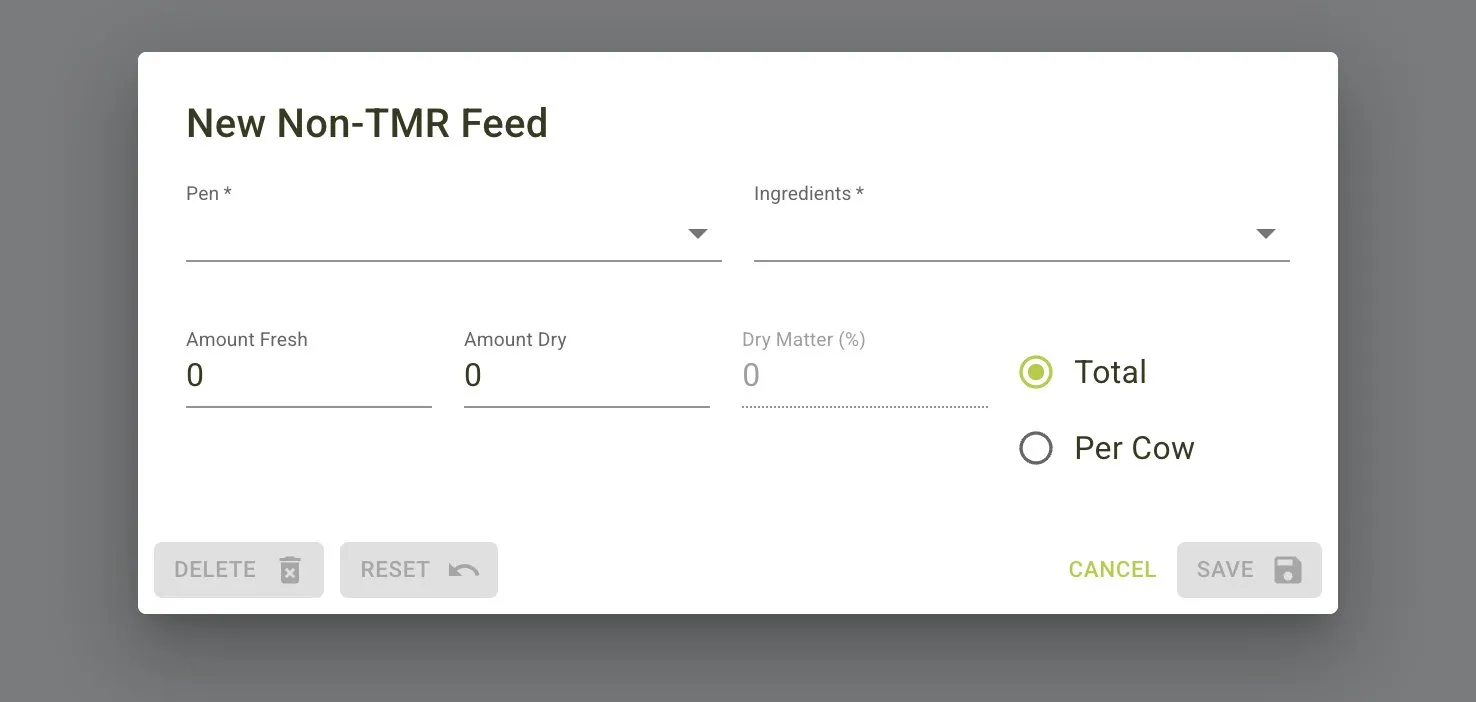
The new feed dialog includes the following fields:
- Pen: Select the Pen
- Ingredients: Select the Ingredient
- Amount Fresh: Enter the fresh weight quantity
- Amount Dry: The system will automatically calculate this based on dry matter percentage
- Dry Matter (%): Enter the percentage of dry matter in the feed
- Total/Per Cow: Select whether the amount is for each animal or the entire group
Editing a Non-TMR Feed
To edit a non-TMR feed:
- Click the feed record you would like to edit or click the edit icon (pencil).
- A dialog will open showing the feed details.
- Update the feed details as needed.
- Select whether the amount is per individual animal (
Per Cow) or for the entire group (Total). - Click the
Savebutton to apply your changes.
Edit Non-TMR Form
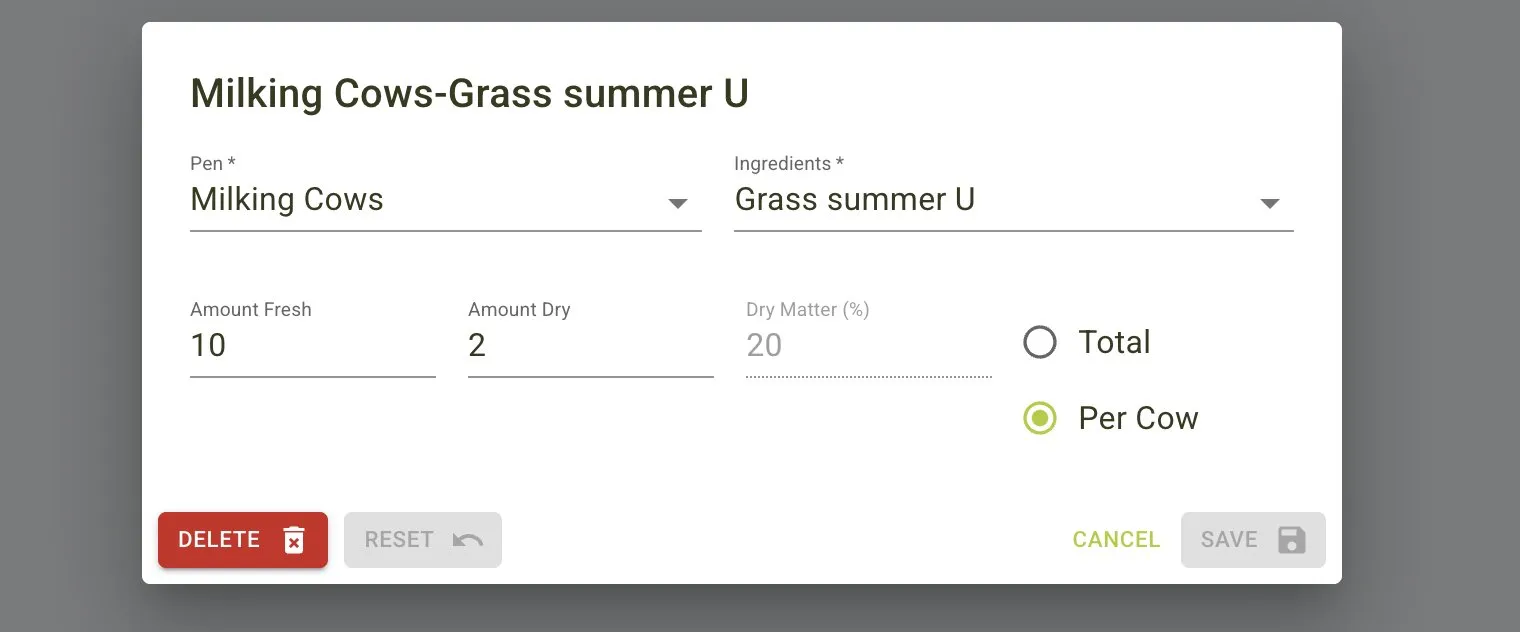
The edit dialog includes the following fields:
- Pen: Select the Pen (e.g., Milking Cows)
- Ingredients: Select the Ingredient (e.g., Grass summer)
- Amount Fresh: Enter the fresh weight quantity
- Amount Dry: The calculated dry weight based on the dry matter percentage
- Dry Matter (%): Enter the percentage of dry matter in the feed
- Total/Per Cow: Select whether the amount is for each animal or the entire group
Deleting a Non-TMR Feed
To delete a non-TMR feed:
- Select the feed record you wish to remove.
- Click the delete icon.
- Confirm the deletion in the dialog that appears.
Dialog options
When editing a feed record, you have several button options:
DELETE: Remove the feed record completelyRESET: Reset any changes made in the form to the original valuesCANCEL: Close the dialog without saving changesSAVE: Apply and save your changes