

Logs
Description
The Notification or Logs feature in Feedlync provides real-time updates and alerts related to your farm’s operations, ingredient changes, stock movements, and system modifications. It helps you stay informed about important events and changes, ensuring you never miss critical information about your farm’s activities.
Accessing Notifications
To access the Notifications page, log in to Feedlync and click the Notification Bell or find it in the Logs option in the side menu. The Notifications page shows a chronological list of all changes and updates made within your Feedlync system.
The Notifications page includes several features to help you navigate and understand the changes:
- Date: Shows when each change occurred, displayed in DD/MM/YYYY, HH:MM:SS format
- What Changed: Describes the specific item that was modified (e.g., ingredients, premixes)
- Changes: Details exactly what was changed in the system
- Updated By: Shows which user made the change (typically displays email address)
- Actions: Additional options for each notification (accessible via the three-dot menu)
You can also view the number of rows displayed per page and navigate through multiple pages of notifications.
Notifications Page View
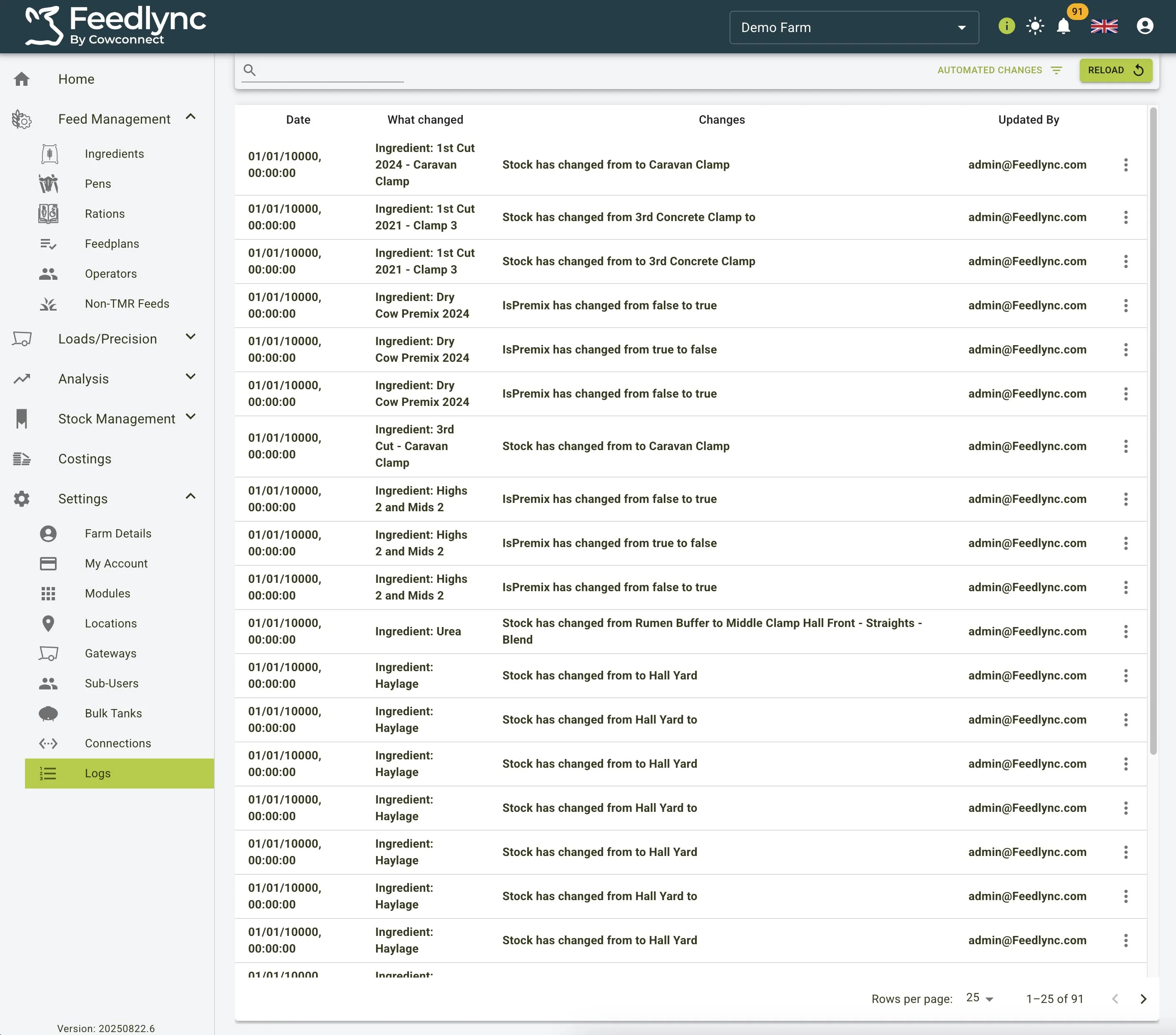
The Notifications page shows various types of changes, including:
- Stock location changes (e.g., “Stock has changed from Caravan Clamp”)
- Ingredient property modifications
- IsPremix status changes (true/false toggles)
- Stock movements between different yard locations
- Buffer to clamp transfers
Each notification includes complete details about what was changed, when it occurred, and who made the change, allowing for full traceability of all system modifications.
Types of Notifications
Feedlync tracks multiple types of changes and updates in the notifications system:
Ingredient Changes
- Changes to ingredient properties
- Cut assignments (e.g., “1st Cut 2024 - Caravan Clamp”)
- Dry ingredient status updates
- Premix status toggling
Stock Movement Notifications
- Location transfers (e.g., from Hall Yard to other locations)
- Clamp changes
- Buffer to clamp movements
System Changes
- Changes to important system settings
- User-initiated modifications
Filtering Notifications
The Notifications page allows you to navigate through all system changes:
- Pagination: Navigate between pages of notifications using the arrows at the bottom
- Rows per page: Select how many notifications to display per page (25 shown in example)
- Page counter: Shows which page you’re viewing and the total number of pages (1-25 of 91)