Sub-Users
Description
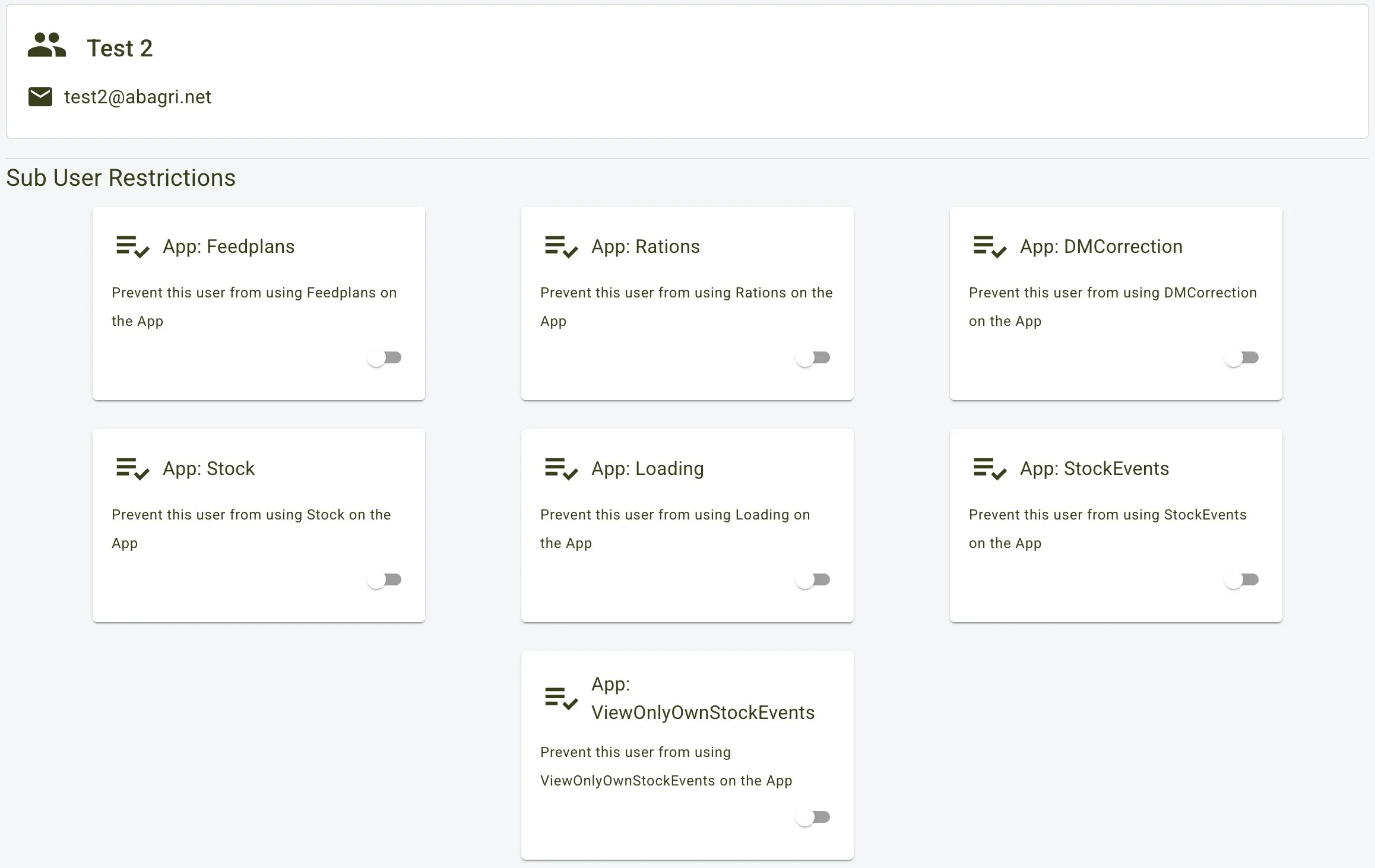
The Sub Users page allows administrators to manage user accounts and define access restrictions for specific functionalities in the system. Using toggle-based permissions, administrators can enable or restrict sub-users’ access to various app features.
Features
- User List:
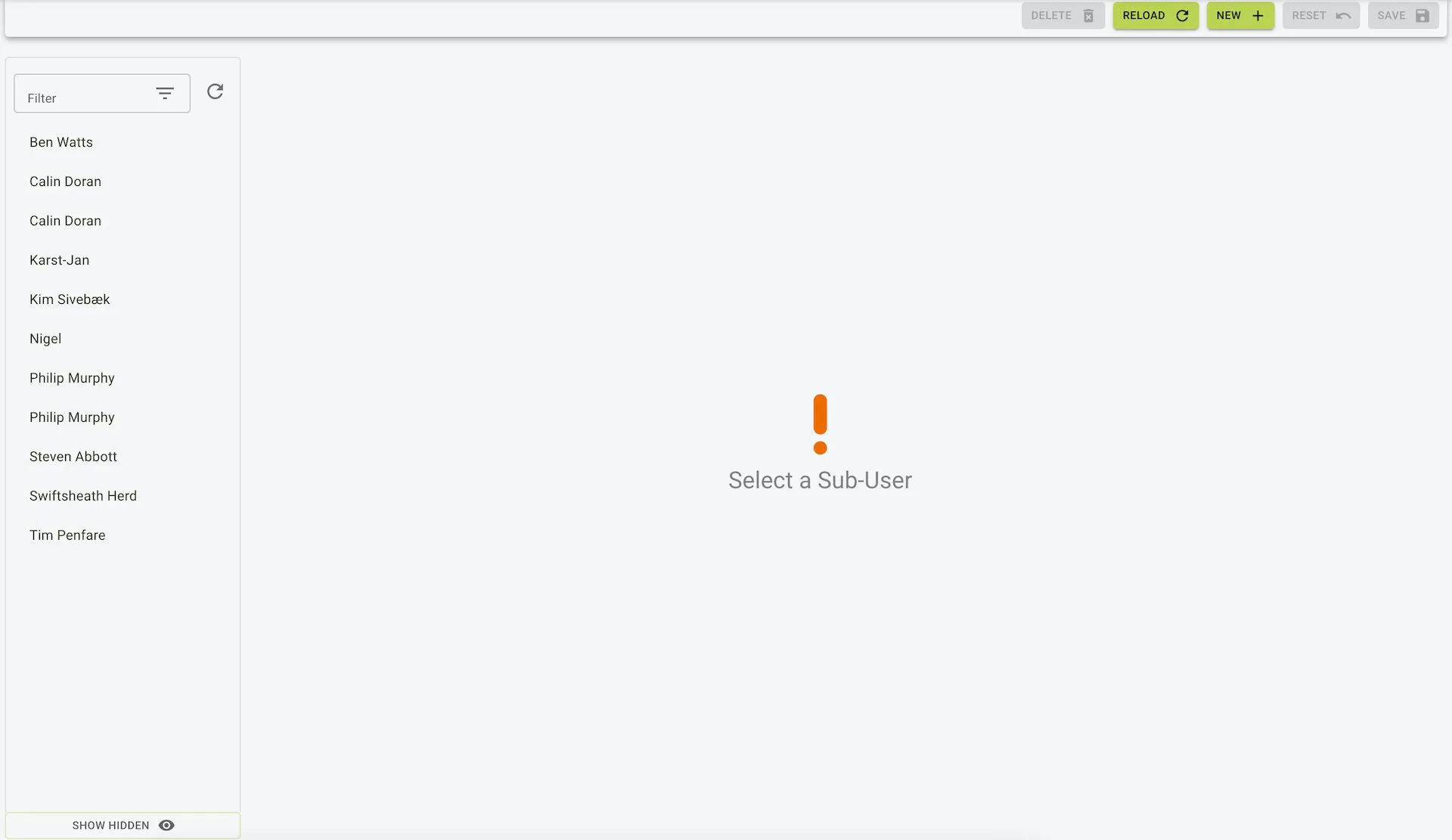
- Displays all sub-users in a sidebar for quick selection.
- User Details:
- Selected user’s name and email address are displayed at the top.
- Permission toggles for restricting specific features are listed below.
- Actions:
- Delete: Remove a sub-user from the system.
- Reload: Refresh the user list and permissions.
- New: Add a new sub-user.
- Save: Save changes to permissions.
- Search and Add Users:
- Use the search bar to look for an existing sub-user by email.
- If the user does not exist, you will be prompted to create a new sub-user by filling out their First Name, Surname, and Email Address, then clicking Create New Sub-User.
Permissions
Each permission toggle restricts the sub-user’s access to a specific app feature. Below are the available permissions and their functions:
- App: Feedplans:
- Prevents the user from creating or managing feed plans on the app.
- App: Rations:
- Restricts the user from accessing or modifying ration data on the app.
- App: DMCorrection:
- Disables the ability to make dry matter corrections via the app.
- App: Stock:
- Prevents the user from viewing or managing stock inventory on the app.
- App: Loading:
- Restricts access to the loading functionality, including viewing or managing loads on the app.
- App: StockEvents:
- Blocks the user from accessing or managing stock-related events on the app.
- App: ViewOnlyOwnStockEvents:
- Limits the user to only viewing their own stock events, ensuring they cannot access events created by others.
Use Case
- User Management:
- Efficiently control which features are accessible to each sub-user.
- Enhanced Security:
- Restrict critical functionalities for users who do not require access.
- Custom Role Assignments:
- Tailor app usage based on individual roles and responsibilities.
Sub-users page view
Adding a Sub-User
To add a Sub-User:
- Click the
Newbutton on the toolbar. - In the
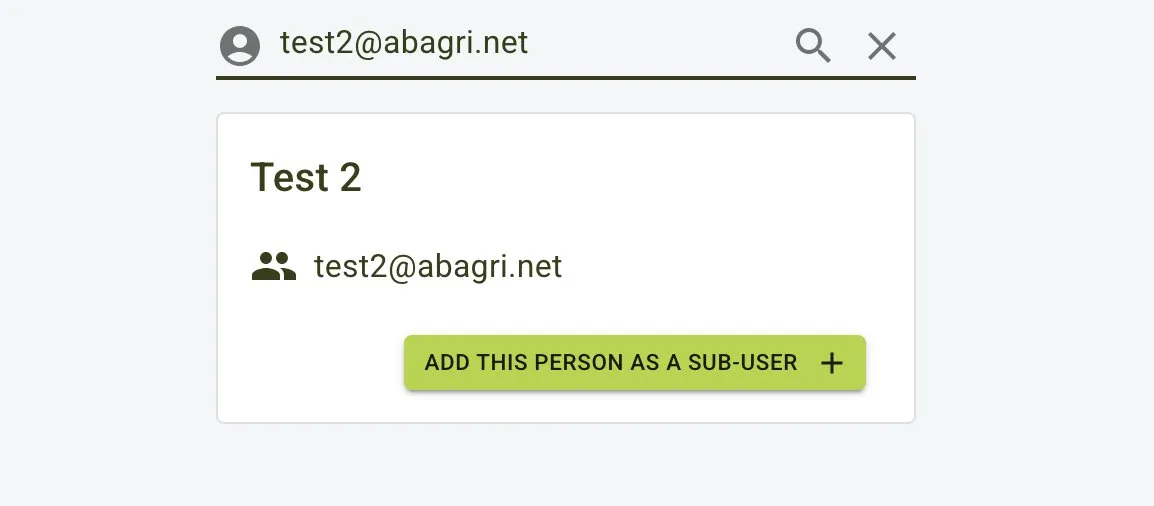
Searchfield, enter the users email that is to be added. - In the sub-user search result, click the
Add this person as a sub-userbutton.
Sub-user search

Sub-user search result
Managing a Sub-User restrictions
To change a sub-users restrictions:
- Select a sub-user from the sidebar list.
- In the tile group of
Restrictionsswitch on a restriction by clicking on theSwitch. - When all restrictions are choosen click the
Savebutton from the toolbar.
Sub-user restriction options