Rations
Description
The Rations section allows farmers to define feed rations for individual animals and associate these rations with specific pens using feed plans. This system ensures precise feeding based on the number of animals in a pen and provides flexibility to adjust feed quantities as needed.
Key Features
Ration Configuration
- Feed ration is configured for one animal.
- Users can add and remove ingredients to customize the ration.
- For each ingredient, users can specify:
- Fresh Weight (kg)
- Dry Matter (%)
- Dry Matter Weight (DM) (kg)
- Cost per unit
- Additional settings include:
- Mix Time: Time required to mix the feed.
- Auto-Load and Auto-Progress: Automation settings for feed preparation.
Nutrient Analysis
- Provides detailed nutrient information for the configured ration.
- Displays values for:
- CP (Crude Protein)
- MP (Metabolizable Protein)
- ME (Metabolizable Energy)
- Other nutritional components like oils and sugars.
History Tracking
- Maintains a record of changes made to the ration over time.
- Allows reverting to previous versions with the Change Back to This Version option.
- When reverting:
- Only the Fresh Weight is carried over.
- Other details like DM% and DM Weight are recalculated based on the current DM% of the ingredients.
Use Case Examples
Creating a New Feed Ration:
- Define a feed ration in the
Ration Configurationsection by adding the necessary ingredients. - Specify the fresh weight, dry matter percentage, and mix time for each ingredient.
- Save the ration.
Associating Ration with Pens:
- Create a feed plan by clicking
Add Feedplan. - Select the pens to associate with the ration.
- Specify the number of days and load split as required.
- Save the feed plan.
Adjusting Feed Quantities:
- Use the
Adjustment%field to modify feed quantities based on real-time conditions (e.g., leftovers). - Update the adjustment value and save the changes to the feed plan.
Integrations
- Ingredient Management: Ingredients used in rations are sourced from the Feed Management module.
- Stock Management: Inventory levels for ingredients are updated automatically based on feed usage.
- Device Integration: Feeding devices execute the feed plans as configured.
Common Operations
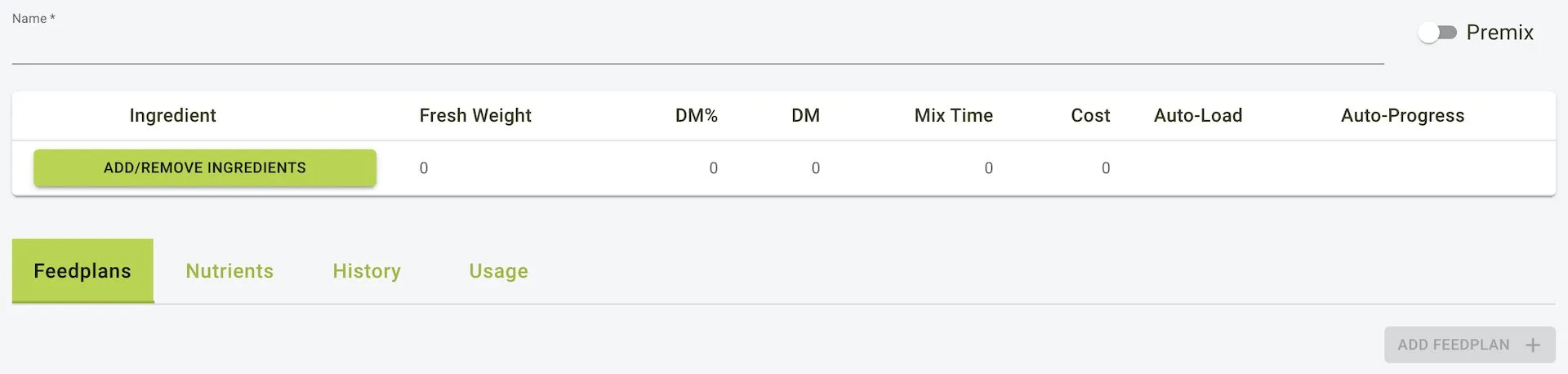
Adding a New Ration
To add a ration:
- Click the
Newbutton on the toolbar. - Enter the ration details.
- Click the
Savebutton on the toolbar to save the ration.
Add Ration Form
Assigning Ingredients to a Ration
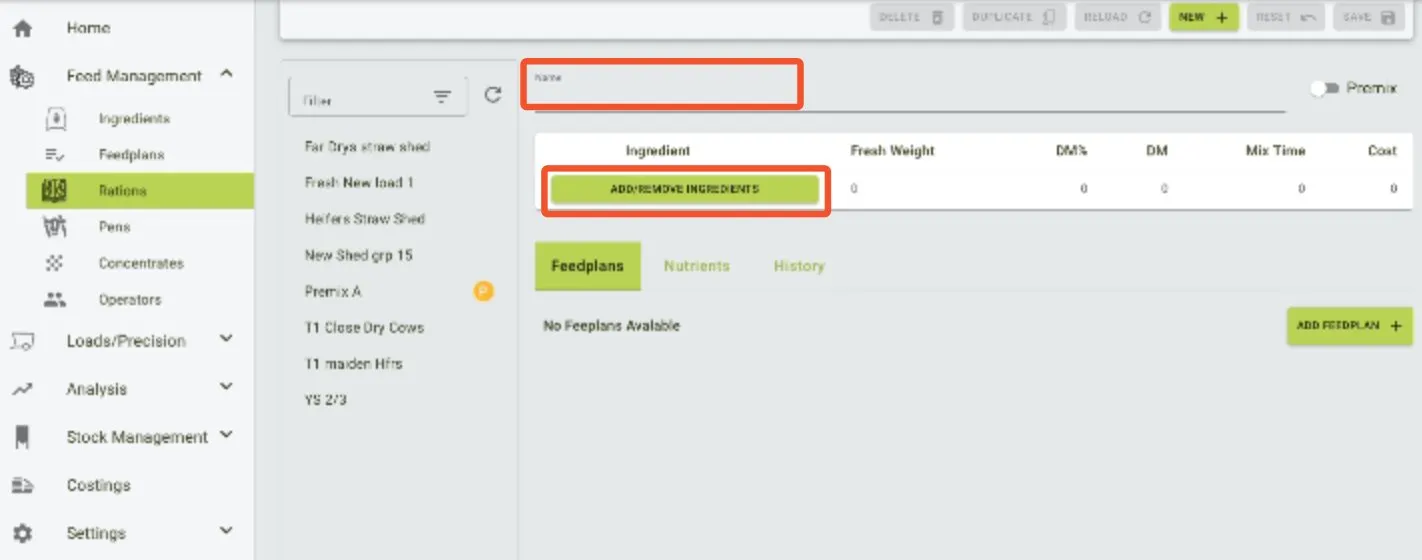
To assign ingredients to a ration:
- Click
Add/Remove Ingredientsbutton.
-
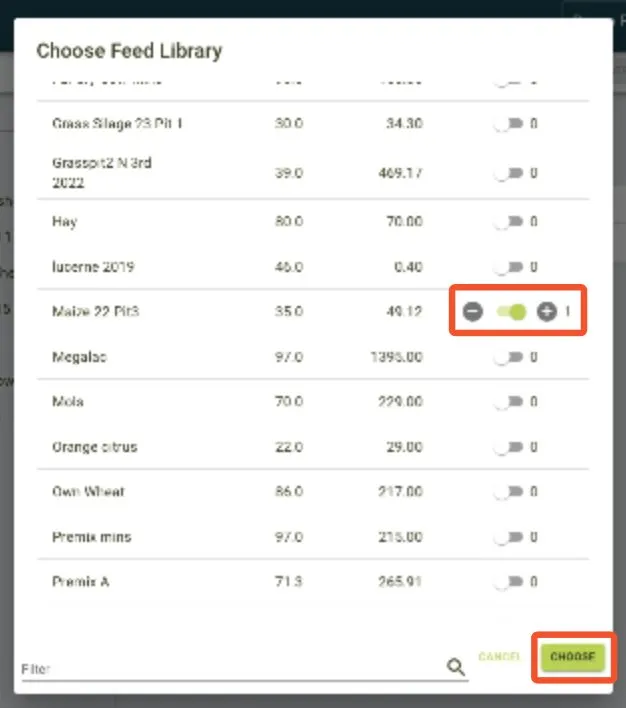
Select the relevant ingredients from the list by turning on the switch.
-
To save the list, click
Choose.
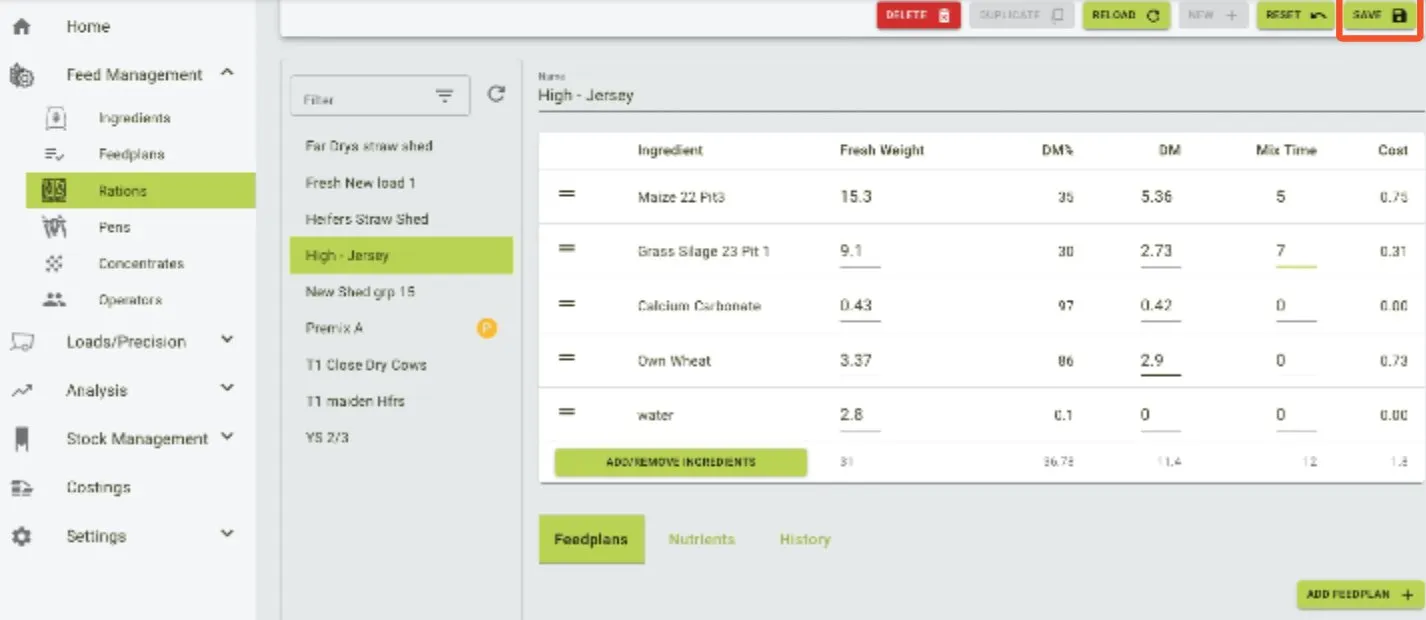
Editing a Ration
To edit a ration:
- Click the
Rationyou would like to edit from the side menu. - Update the ration details.
- Click the
Savebutton on the toolbar to save the changes.
Edit Ration Form
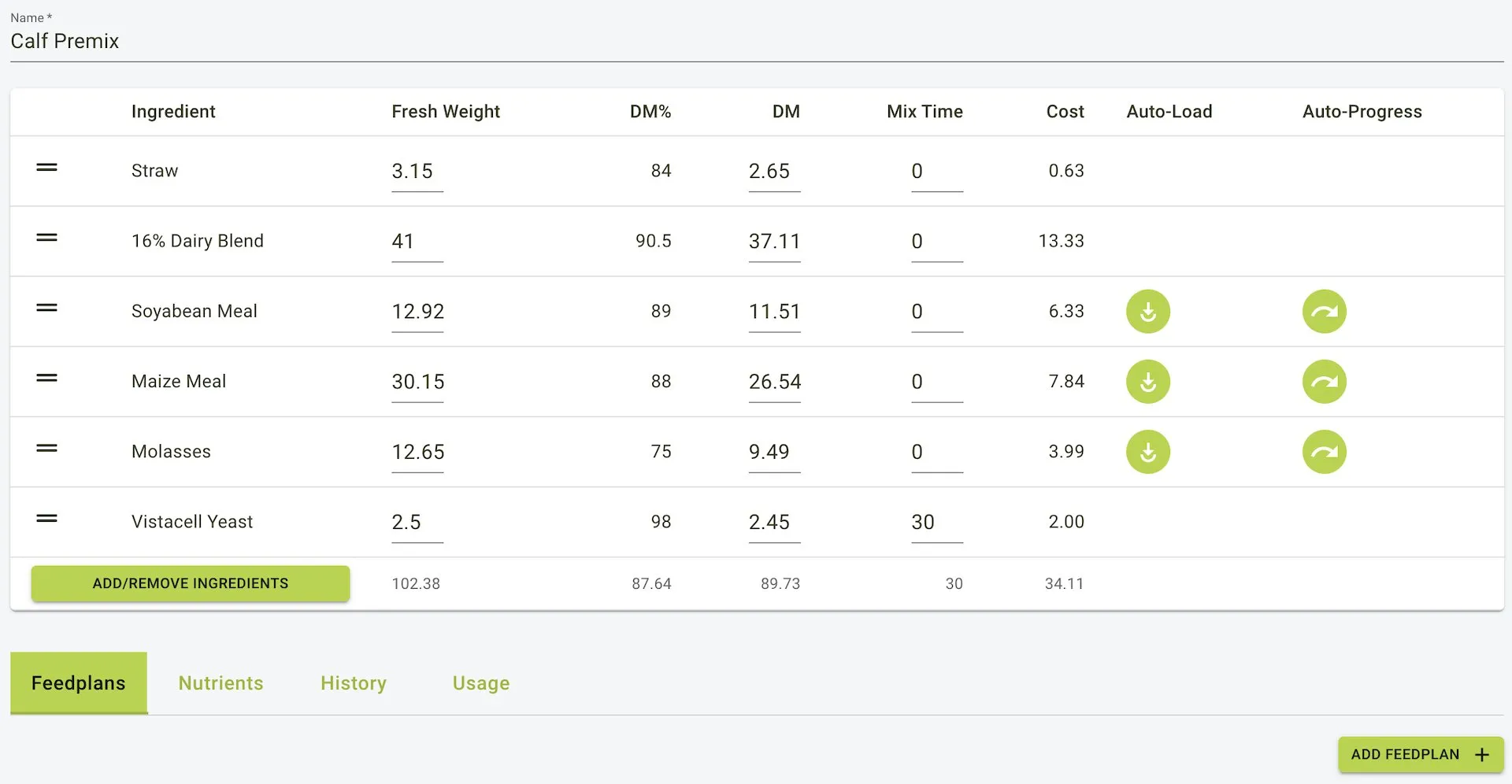
Deleting a Ration
To delete a ration:
- Click the
Rationyou would like to delete from the side menu. - Click the
Deletebutton on the toolbar. - Confirm the deletion in the dialog that pops up.
Delete Ration Dialog
Upon seeing this dialog you will be notified: This action is irreversible. Are you sure you want to delete this ration?
Clicking Delete will permanently remove the ration from your system.

Adding Fresh Weight for Ingredients
To add fresh weight for chosen ingredients:
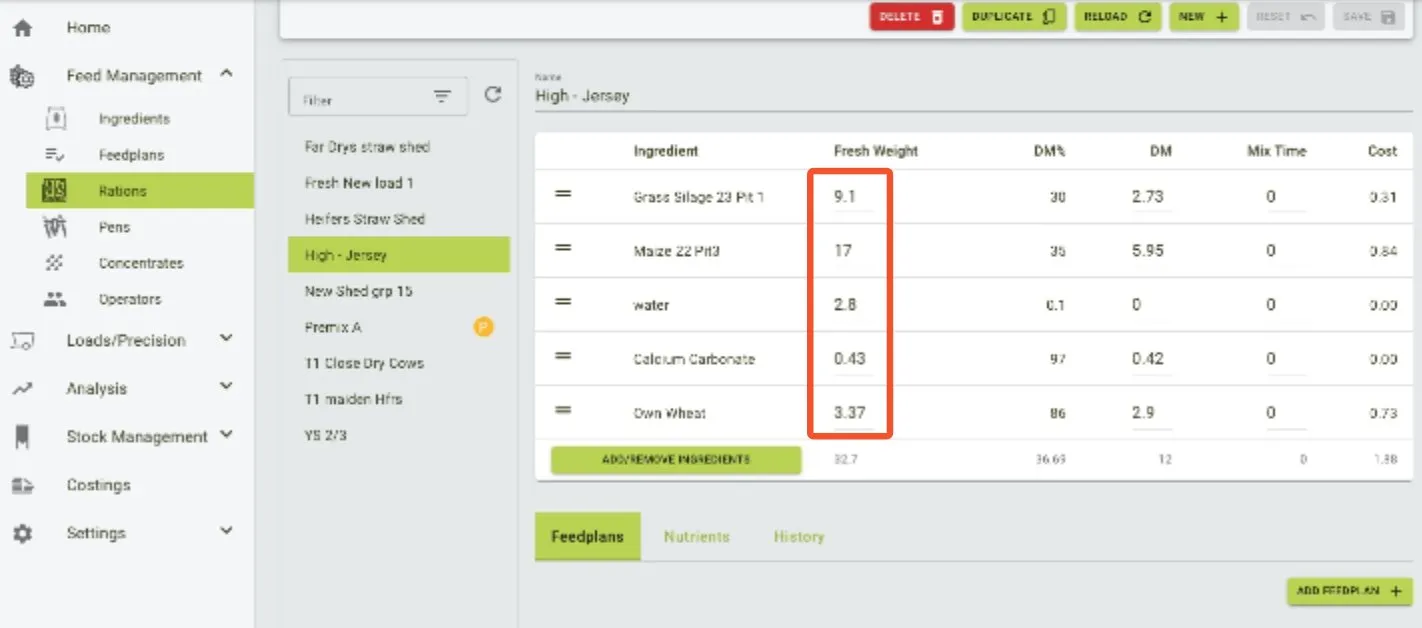
- Edit components by clicking the weight field next to the ingredient’s name, then write the desired amount.
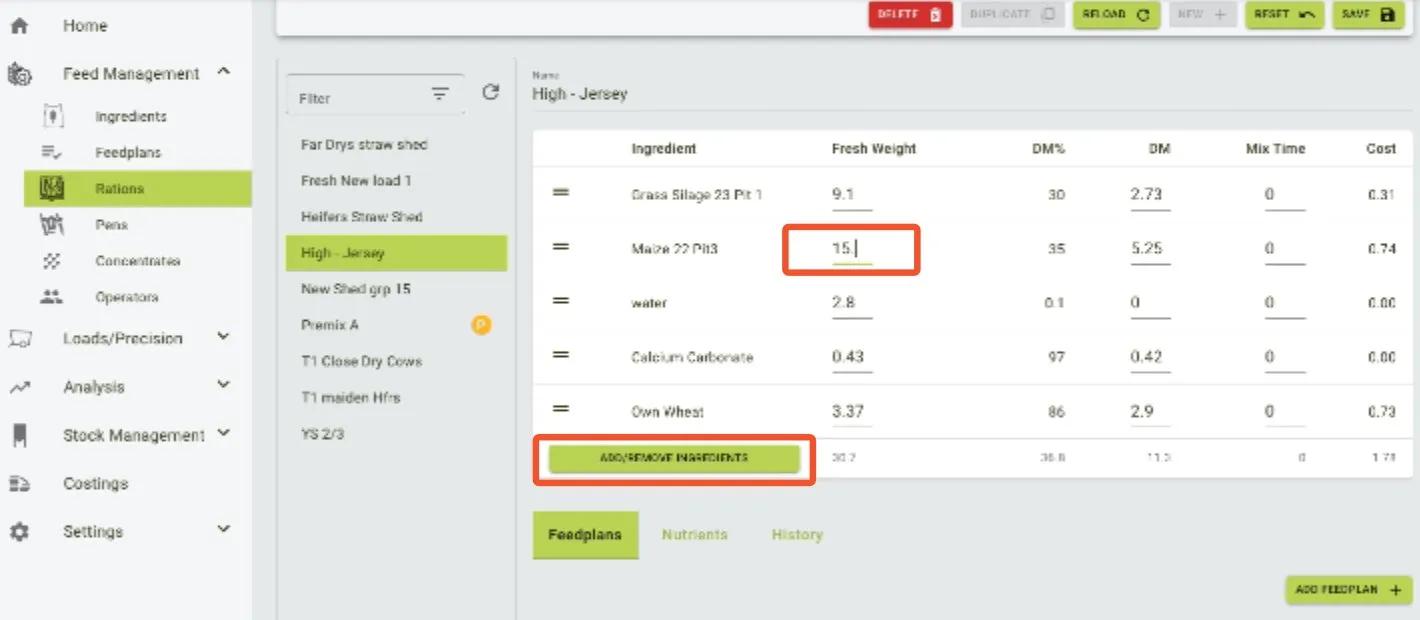
- To remove an ingredient or add a new one, click on
Add/Remove Ingredients.
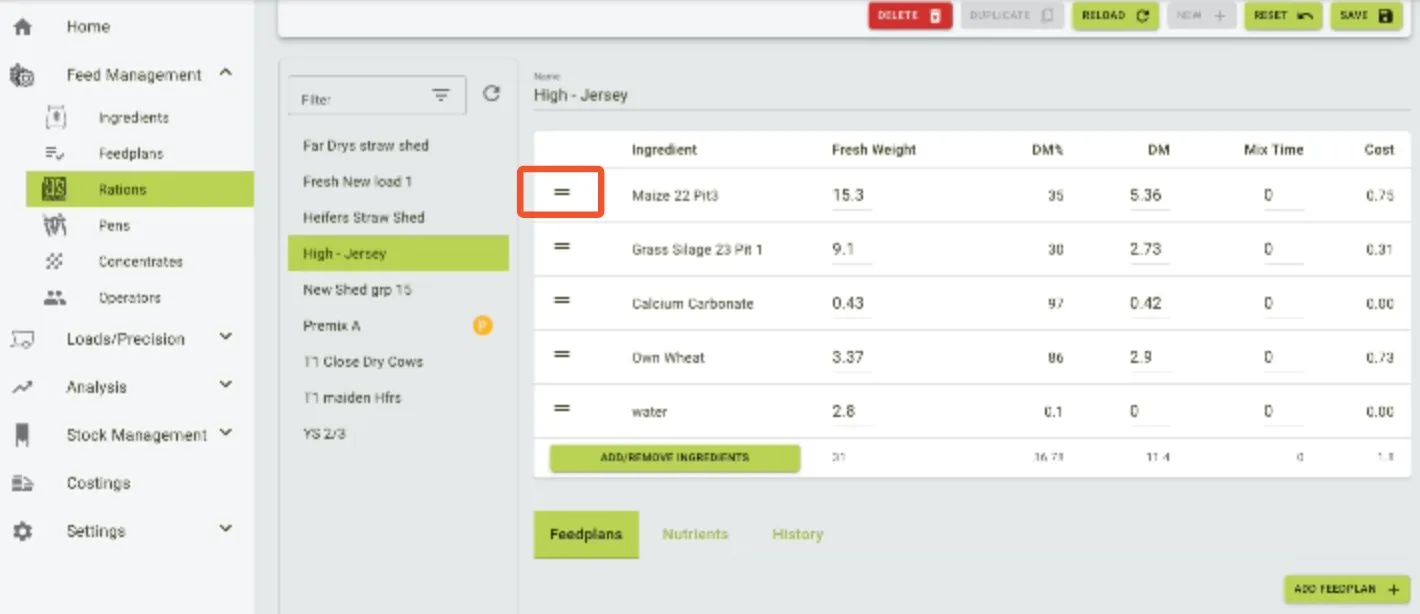
- Change the order of ingredients on the list by holding onto the two lines and dragging the item up or down the list.
- We recommend to creating an order on the list, which follows the order how the ingredients will be loaded into the mixer.
Adding Mix Time for Ingredients
To add mix time for chosen ingredients:
- Mix time can be assigned to each ingredient by clicking the field, and adding the number of minutes for the mixing.
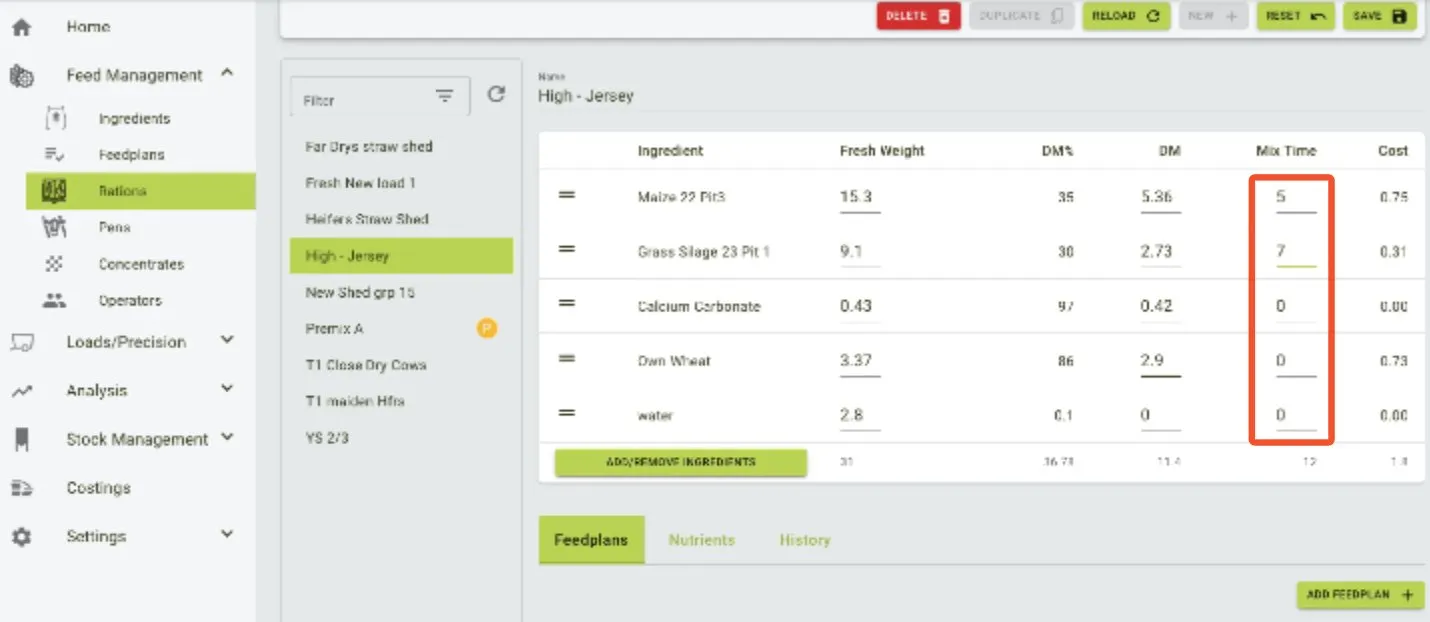
- When you finish setting up the ration, press the
Savebutton on the toolbar to save the changes.