

Stock Events
Description
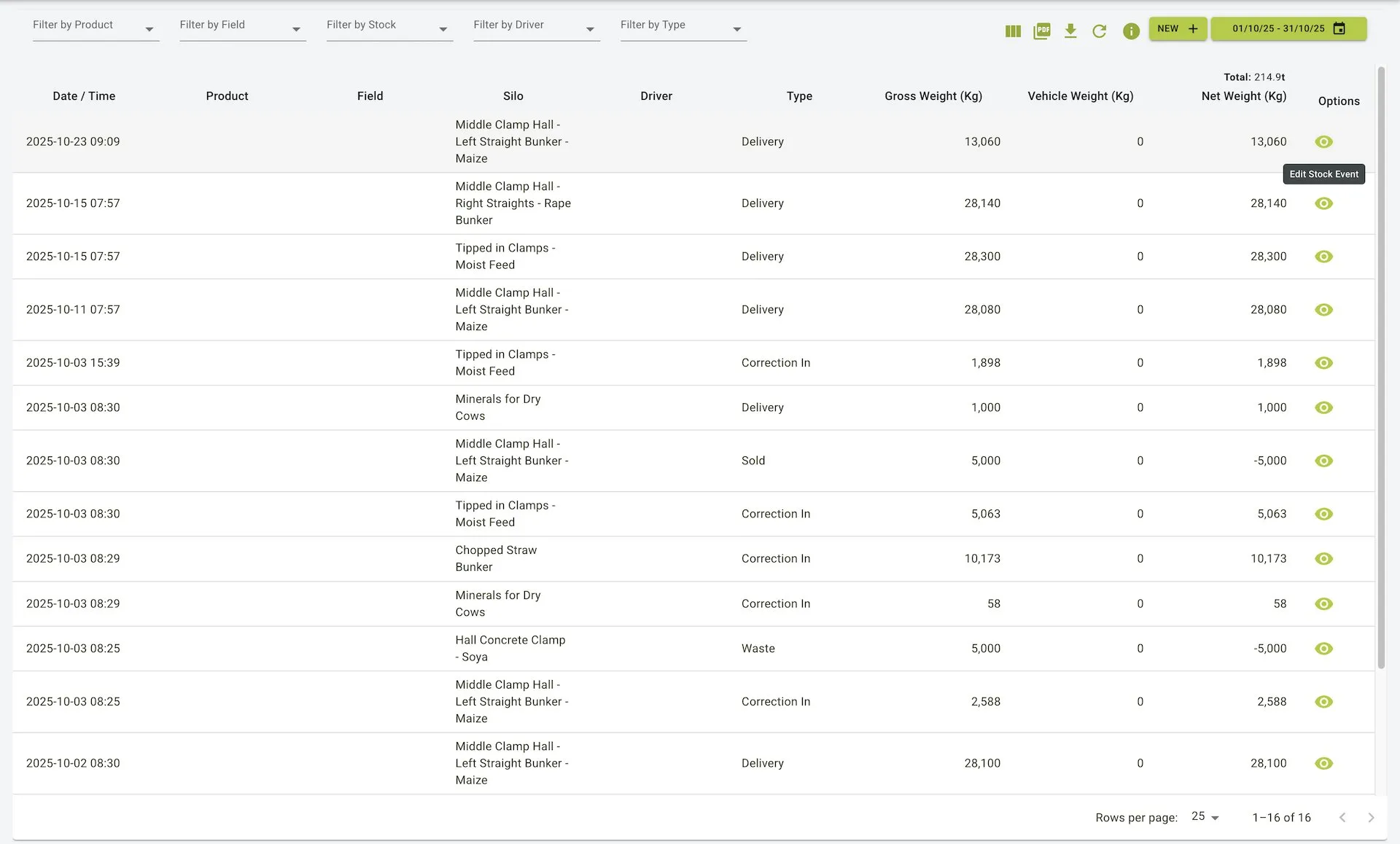
The Stock events page is where you can view and manage the stock events.
Features
This tables core information about stock events can be viewed here.
Table columns include:
- Date: The date of the stock event.
- Product: The product involved in the stock event.
- Field: The field involved in the stock event.
- Silo: The silo involved in the stock event.
- Driver: The driver involved in the stock event.
- Type: The type of stock event.
- Gross Weight (Kg): The gross weight of the stock event.
- Vehicle Weight (Kg): The vehicle weight of the stock event.
- Total: The total or net weight of the stock event (Kg).
- Options: The options for the stock event.
Additional Functionality:
- Clicking the Options button on a stock event row opens a dialog with the following options:
- Edit: Modify the stock event details.
- Delete: Permanently remove the stock event from the system.
Table Options
- Filter by Product: Filter the stock events by product.
- Filter by Field: Filter the stock events by field.
- Filter by Stock: Filter the stock events by stock.
- Filter by Driver: Filter the stock events by driver.
- Filter by Type: Filter the stock events by type.
- Columns: Customise the columns displayed in the table.
- PDF: Export the stock events table to a PDF.
- Export: Export the stock events table to a CSV.
- Refresh: Refresh the stock events table.
- New: Create a new Stock Event.
- Date Range: Filter the stock events by date range.
Stock Events page view
Adding a stock event
To add a stock event:
- Click the
Newbutton on the toolbar of the table. - Enter the stock event details for the new stock event in the dialog.
- Click the
Savebutton on the bottom of panel to save the new stock event. - View the new stock event in the
Table, this can be edited or deleted if needed.
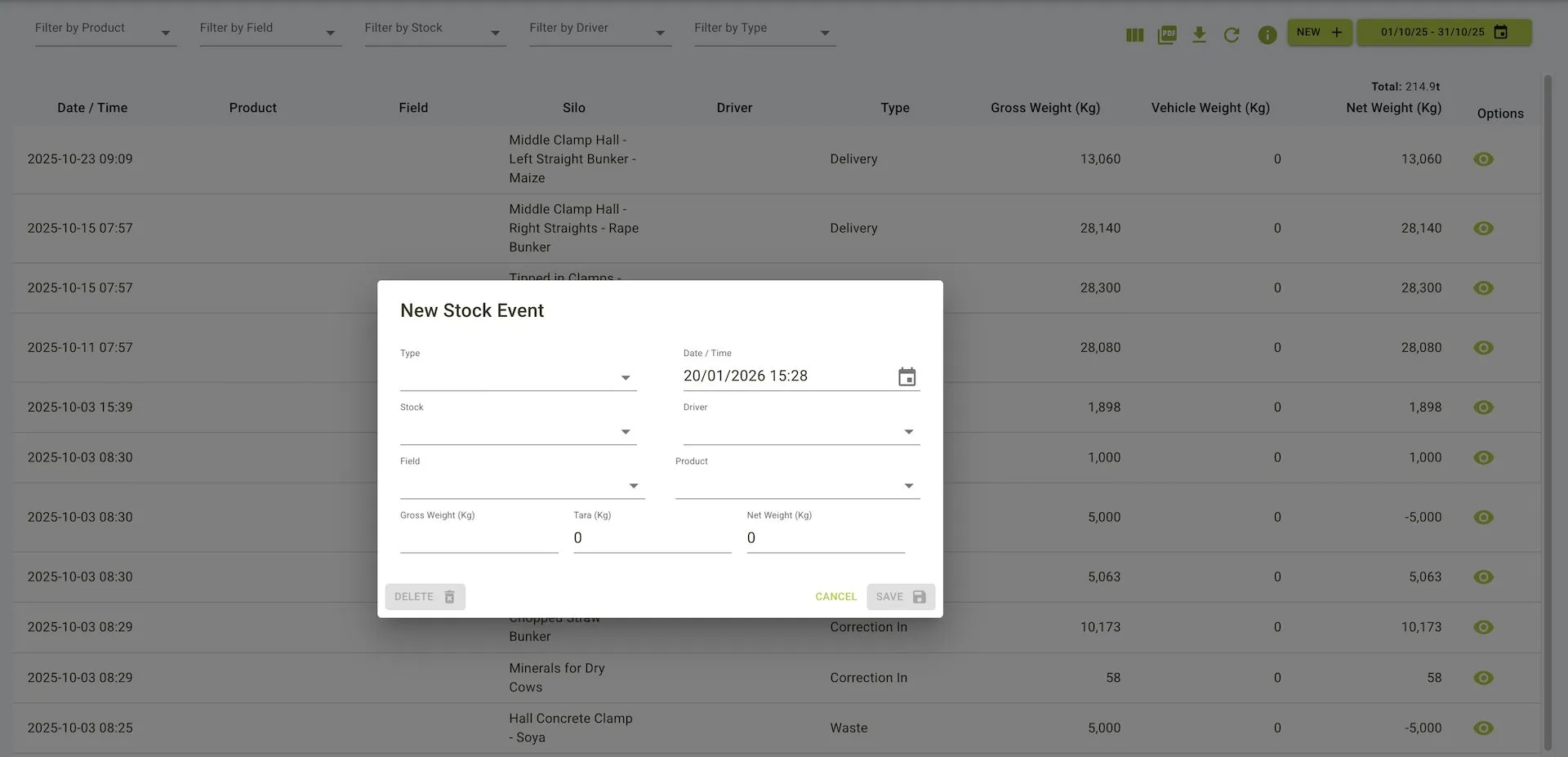 Example of the New Stock Event form.
Editing a stock event
To edit an existing stock event:
- Click the eye icon in the
Optionscolumn for the row you want to update. - Update the fields (type, stock, field, driver, product, weights) as needed in the dialog.
- Click
Saveto apply the changes.
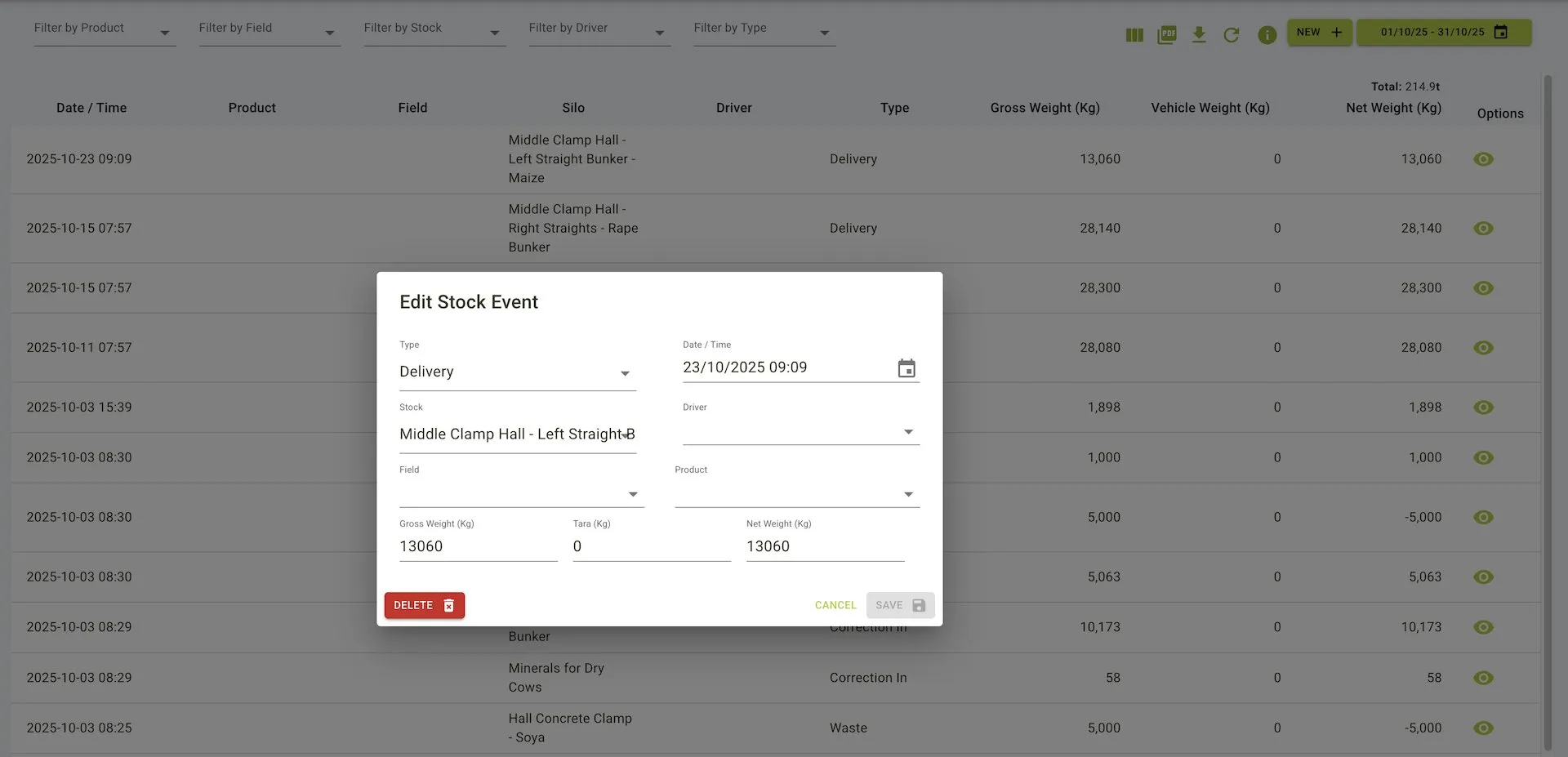 Example of the Edit Stock Event form.