Operators
Description
The Operators section allows farmers to add and manage operators responsible for feed preparation. It provides a performance overview to monitor the accuracy of ingredient usage by each operator.
Use Case Examples
Adding a New Operator:
- Click
New. - Enter the operator’s name in the provided field.
- Save the operator by clicking
Save.
Viewing Operator Performance:
- Select an operator from the list on the left-hand side.
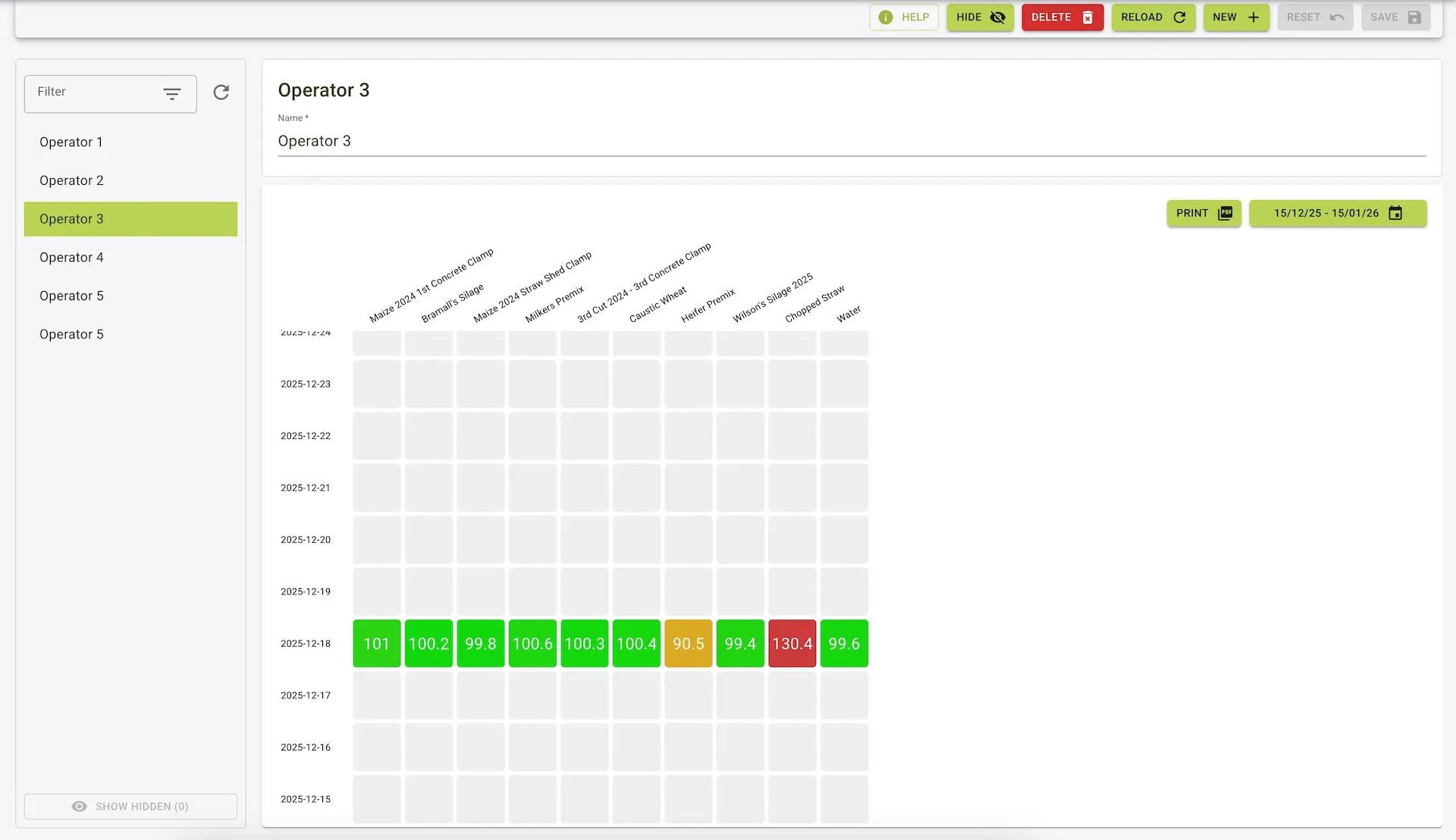
- The performance data for the selected operator is displayed in a table format.
- Each day shows the accuracy of ingredient loading, with green blocks indicating 100% accuracy.
Generating Reports:
- Use the
Printbutton to generate a report of the operator’s performance. - Select the desired date range for the report.
Benefits
- Performance Tracking: Enables farmers to track and review the accuracy of each operator.
- Accountability: Ensures operators follow feed plans correctly, reducing waste or errors.
- Report Generation: Allows for easy review of operator performance over time.
Feature View
Common Operations
View Operator Accuracy
To view an operator’s accuracy:
In the Operator screen, click any accuracy tile on the heatmap (e.g., the green/yellow/red squares).
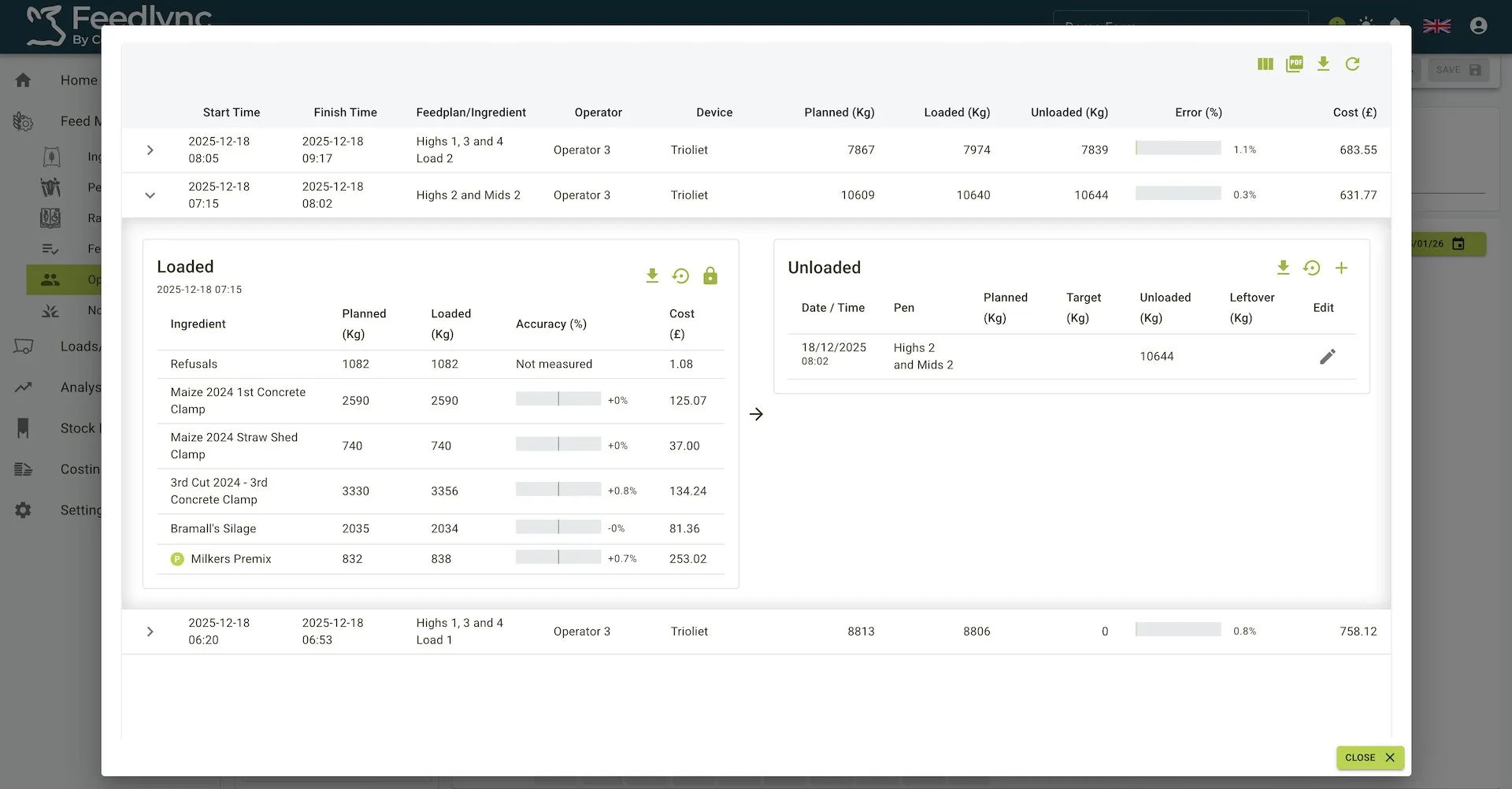
This opens the detailed load dialog showing:
- Loaded table with planned vs. loaded amounts, per-ingredient accuracy (%), and cost.
- Unloaded table with planned, target, unloaded, and leftover weights, plus edit controls.
- Summary for start/finish time, feedplan/ingredient, operator, device, and overall error (%).
Adding an Operator
To add an operator:
- Click the
Newbutton on the toolbar. - Enter the operator details.
- Click the
Savebutton on the toolbar to save the operator.
New Operator Form
A simple form is provided to input the operator’s details i.e. name of the operator.

Editing an Operator
To edit an operator:
- Click the
Operatoryou would like to edit from the side menu. - Update the operator details.
- Click the
Savebutton on the toolbar to save the changes.
Edit Operator Form
A simple form is provided to update the operator’s details i.e. name of the operator.

Deleting an Operator
To delete an operator:
- Click the
Operatoryou would like to delete from the side menu. - Click the
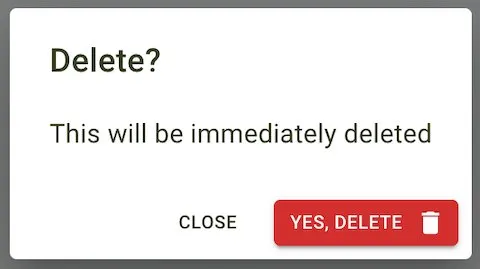
Deletebutton on the toolbar. - Confirm the deletion in the dialog that pops up.
Delete Operator Dialog
Upon seeing this dialog you will be notified: This action is irreversible. Are you sure you want to delete this ration?
Clicking Delete will permanently remove the ration from your system.