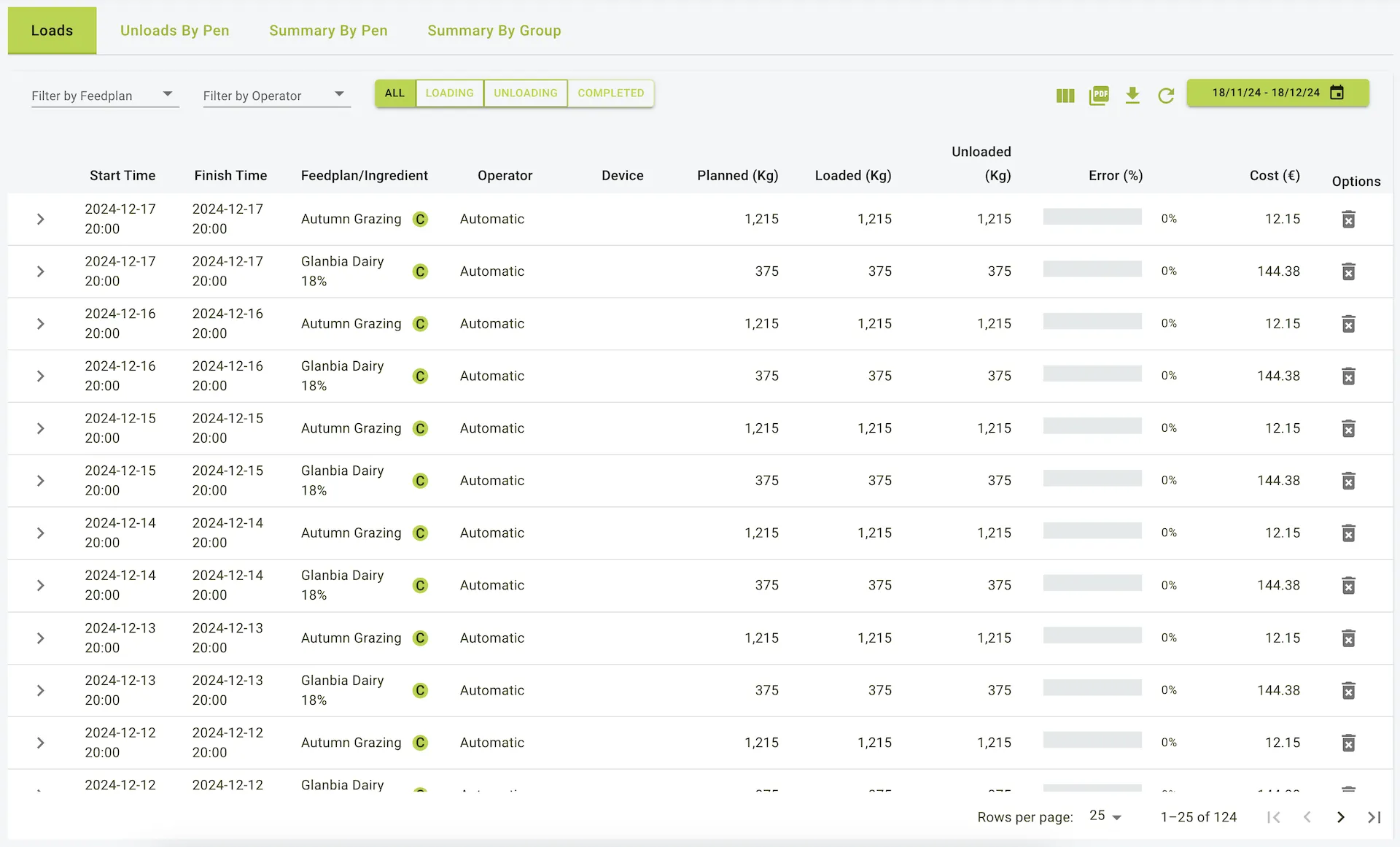
Loads
Description
The Loads page provides a comprehensive view of the loading and unloading process for feed management. It includes detailed data about ingredients loaded, unloaded quantities, accuracy, and costs. Users can filter by feed plans, operators, and date ranges to analyse specific load events. The page also supports filtering between “Loading,” “Unloading,” and “Completed” loads.
Features
- Filters and Navigation:
- Date Range Selector: Select a specific date range to view loads within that period.
- Feed Plan and Operator Filters: Narrow down results by selecting specific feed plans or operators.
- View Modes: Toggle between “Loading,” “Unloading,” and “Completed” to refine the displayed data.
- Detailed Load Information:
- Each row represents a load event with summary information such as:
- Start Time: When the load began.
- Finish Time: When the load was completed.
- Feed Plan/Ingredient: The feed plan or ingredient being loaded.
- Operator: The person responsible for the load.
- Planned (Kg): The target weight of the load.
- Loaded (Kg): The actual weight loaded.
- Unloaded (Kg): The weight unloaded.
- Error (%): The deviation from the planned weight.
- Cost (€): The total cost of the load.
- Each row represents a load event with summary information such as:
- Detailed Unload Information:
- Each row also includes details about the unloading process, such as:
- Date/Time: When the feed was unloaded.
- Pen: The pen where the feed was unloaded.
- Unloaded (Kg): The weight unloaded to each pen.
- Leftover (Kg): The weight of any leftover feed.
- Planned: This is the quantity that comes from the feedplan for each pen.
- Target: This is the quantity per pen that comes from the amount loaded into the mixer wagon.
- Each row also includes details about the unloading process, such as:
- Granular Load Details:
- Expand each load row to view detailed breakdowns:
- Loaded Ingredients: Includes the planned weight, loaded weight, accuracy percentage, and cost for each ingredient.
- Unloaded Details:
- Displays the pens where feed was unloaded, the amount unloaded, and any leftovers.
- Users can edit unload details to input leftover quantities, ensuring accurate records.
- Expand each load row to view detailed breakdowns:
- Adding Leftovers:
- To add leftovers for a load:
- Expand the load row to view unload details.
- Click the Edit button next to the relevant pen.
- Input the leftover quantity in the designated field.
- Save changes to update the load record.
- To add leftovers for a load:
Key Metrics
- Accuracy (%): Indicates how closely the loaded weight matches the planned
weight. Deviations are colour-coded:
- Green: Within acceptable limits.
- Yellow: Minor deviations.
- Red: Significant deviations.
- Cost (€): Displays the cost of each ingredient and the total cost for the load.
Loads
Editing loads
Loads ingredients can be edited. If errors are spotted on load quantities they can be changed very easily.
- Navigate to the loads page.
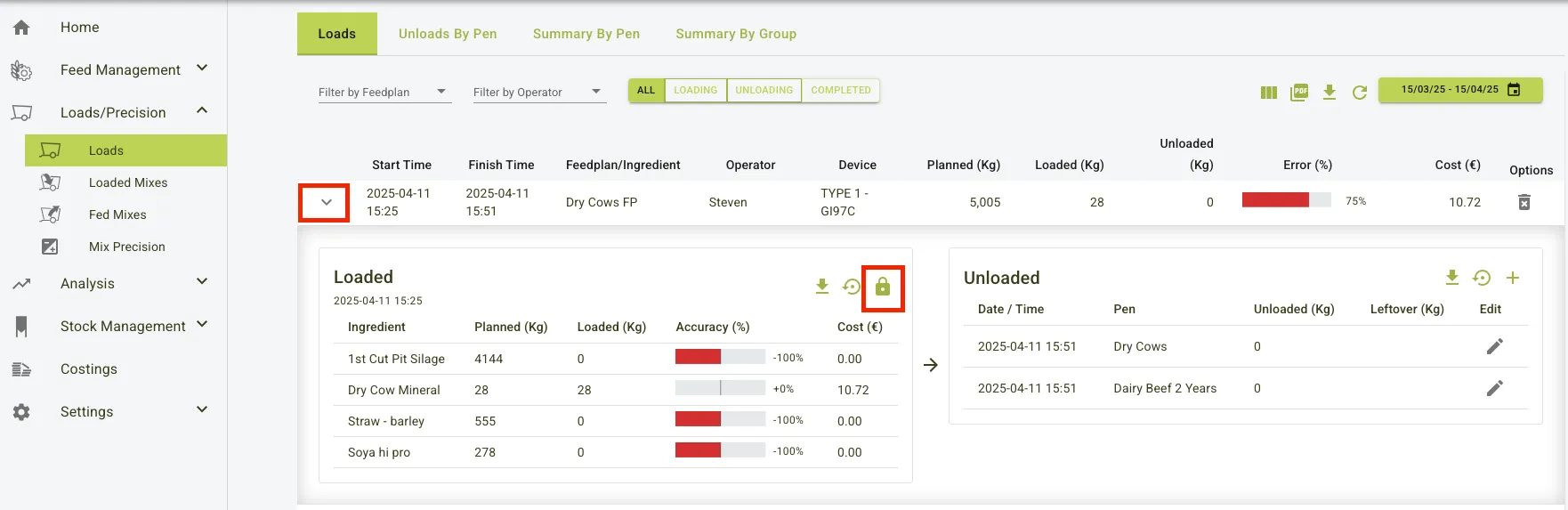
- Click the dropdown on the load to be investigated.
- Click on the lock icon, this will expand all the load ingredients.
- Click on the edit button.
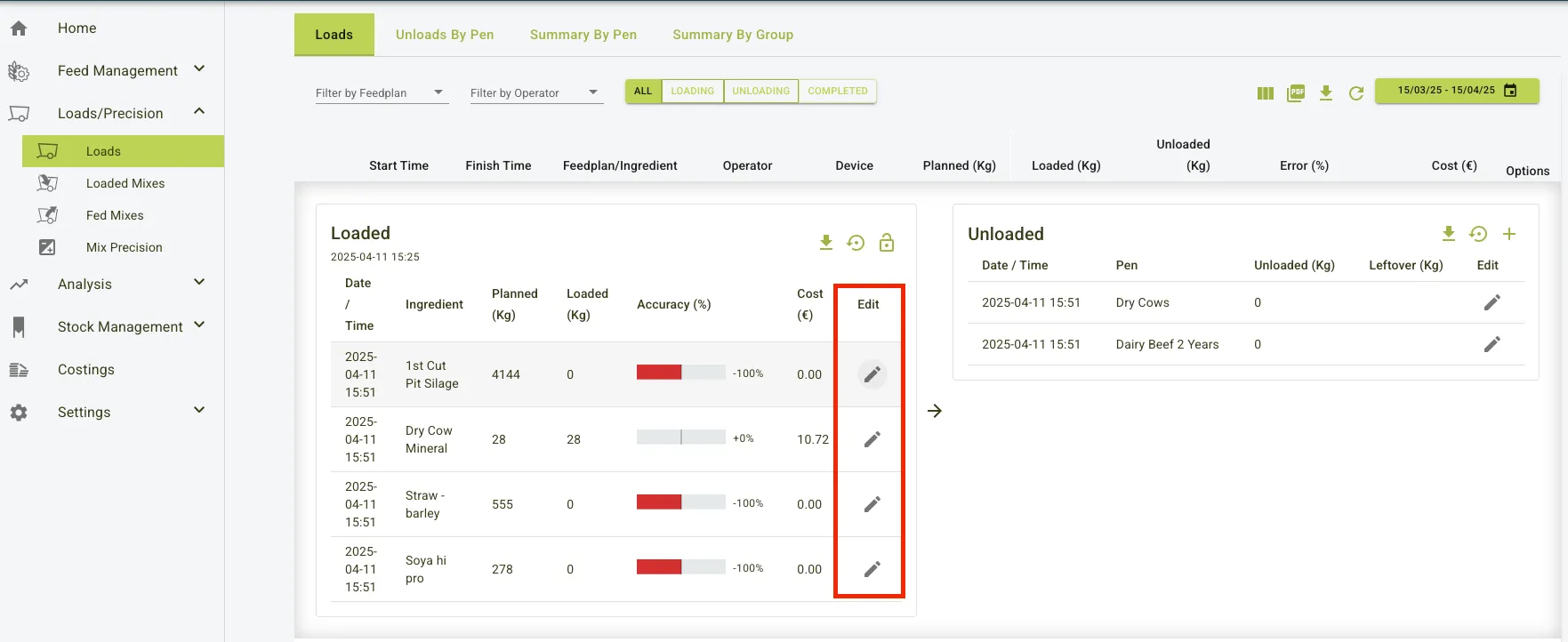
This will display another pop up tile where you enter the correct data in to the loaded input.
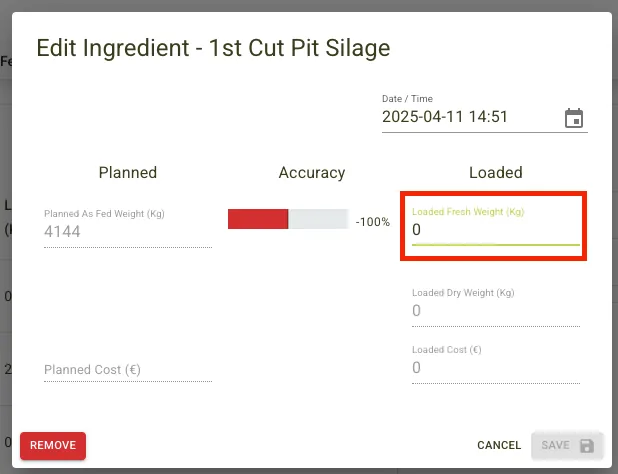
- Click save.
The new loaded weight should be displayed and the total loaded weight should update based on the correction.
Unloads by Pen Tab
Main Features
- Pen-wise Details:
- Date/Time: When the unload was performed.
- Pen: Indicates the pen receiving the feed.
- Planned (Kg): Target weight of the feed.
- Fed (Kg): Actual weight fed.
- Error (%): Deviation from planned weight.
- Cost (€): Total cost for the feed unloaded to the pen.
- Ingredient Breakdown:
- Shows planned vs. fed quantities for each ingredient.
- Highlights accuracy (%) for each ingredient.
Summary by Pen Tab
Main Features
- Consolidated Pen Data:
- Displays total Planned (Kg), Fed (Kg), Dry Matter (Kg), and associated costs.
- Includes per cow metrics, such as Fed (Kg/cow) and Dry Matter (Kg/cow).
- Ingredient-Level Details:
- Planned, fed, and dry matter quantities for each ingredient.
- Accuracy (%) and cost details.
Summary by Group Tab
Main Features
- Group-Wise Aggregation:
- Groups pens into categories for better overview.
- Displays planned and fed weights, dry matter data, and costs at the group level.
- Detailed Ingredient View:
- Breaks down feed data by ingredient for each group.
Practical Use Cases
- Analysing Load Performance:
- Use the “Loads” page to review operator accuracy and identify areas for improvement.
- Compare planned versus loaded weights to optimise feed efficiency.
- Managing Leftovers:
- Keep accurate records by editing unload details to account for leftovers.
- Ensure precise tracking of feed utilization and costs.
- Tracking Costs:
- Monitor the cost per load and ingredient to manage feed expenses effectively.
Summary
The Loads page serves as a powerful tool for managing and analysing feed loading and unloading processes. By providing detailed data and flexible filters, it enables users to maintain accurate records, optimise feed efficiency, and control costs.
Tips
- Premixes should always have 0 kg unloaded
Example view of the loads page