Groups
Description
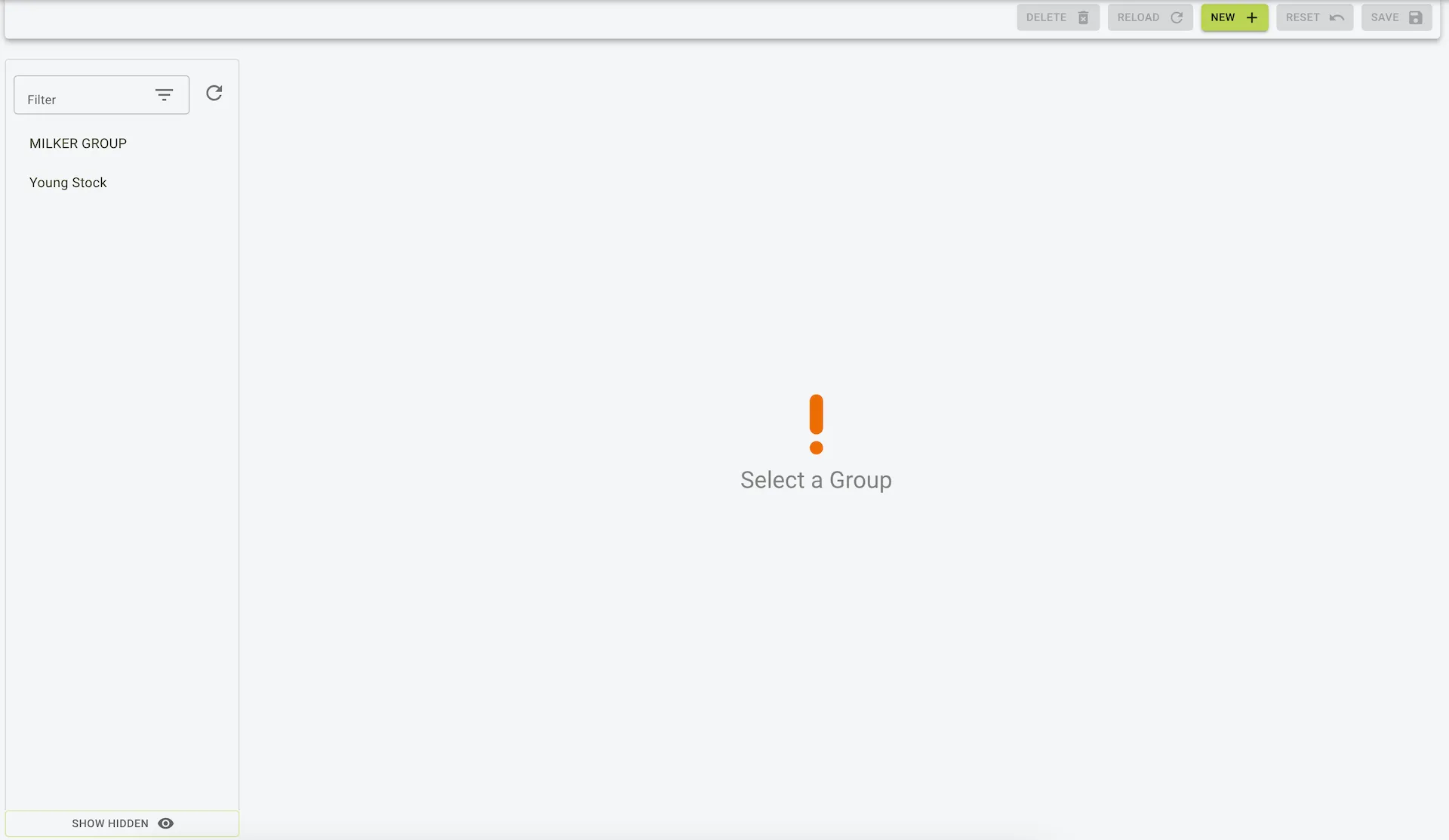
The Groups Page in the settings section allows users to organize and manage pens by creating custom groups. This feature helps streamline operations and reporting by categorizing pens based on specific management needs.
Features
- Create Groups:
- Users can create new groups to categorize pens (e.g., “Milker Group”, “Young Stock”).
- Manage Pens in Groups:
- Assign or remove pens from a group using the Add/Remove Pens button.
- Update group details like name and associated pens.
- Group View:
- A list of groups is displayed on the left sidebar for quick navigation.
- Selecting a group shows all associated pens along with their details.
Fields and Columns
- Group Name:
- The name of the group (e.g., “Milker Group”, “Young Stock”).
- Pen Details:
- Name: The name of the pen (e.g., “Milking Cows”, “Pen56”).
- Number: The number of animals in the pen.
- Type: The type of pen (e.g., “Milker”, “Dry”).
- Sub-Type: Further categorization of the pen type (e.g., “High”, “Fresh”).
Actions
- Add/Remove Pens:
- Modify the pens associated with a group by clicking the Add/Remove Pens button.
- Create New Group:
- Click New to create a custom group.
- Delete Group:
- Use the Delete button to remove an unwanted group. Note that this action does not delete the pens but only the grouping.
Use Case
- Organization:
- Group pens by management type, such as milkers, dry cows, or young stock, for easier tracking.
- Customized Reporting:
- Generate reports based on groups for better analysis and decision-making.
- Simplified Management:
- Quickly access pens categorized under specific groups, streamlining farm operations.
Example view of groups