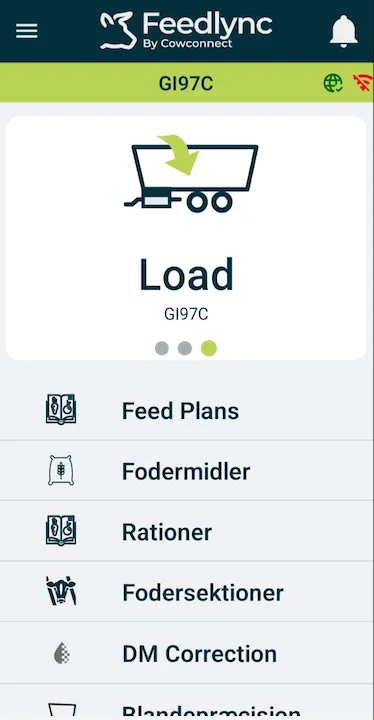
How to change languages on PC and mobile devices
Introduction
Feedlync is available in multiple languages. This guide explains how to change the language on Feedlync on a PC or mobile device.
Changing the Language on PC
-
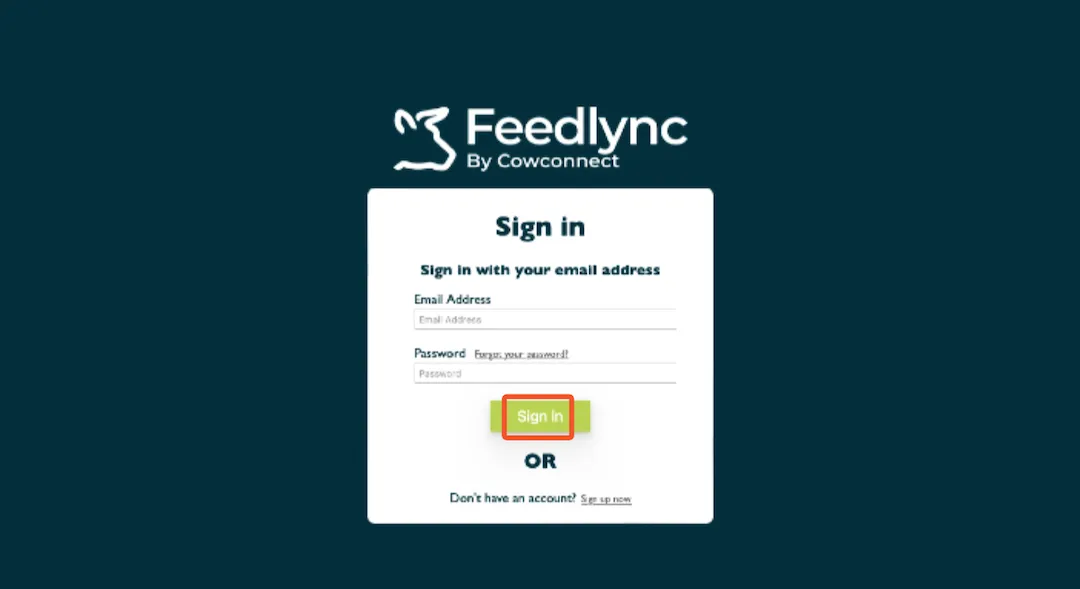
Open the Feedlync website on your PC and log in.
-
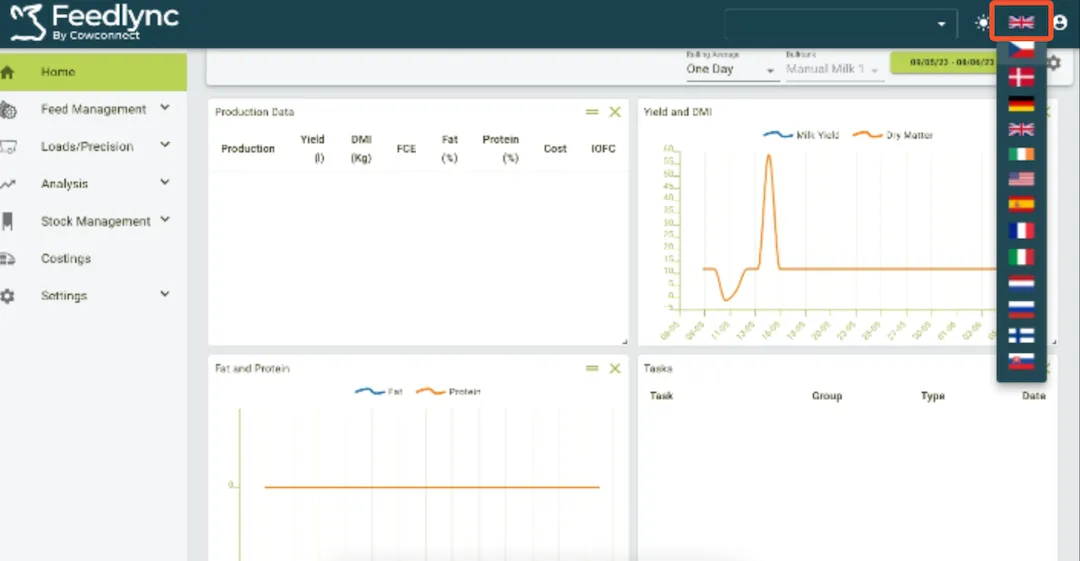
In the upper right corner click on the flag icon and choose the language you want to use from the list.
Changing the Language on Mobile
-
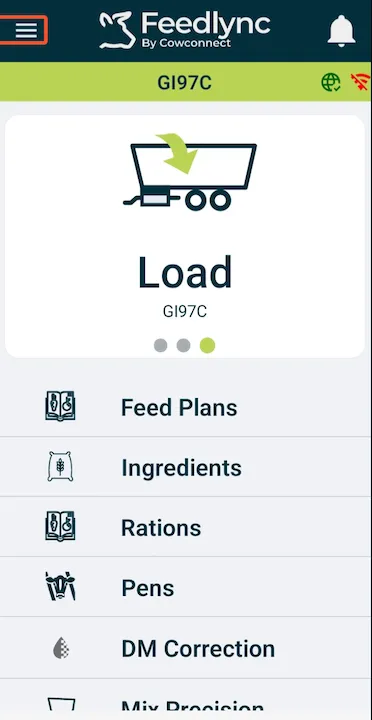
Open the Feedlync app on your mobile device and log in.
-
Tap on the
horizontal linesin the upper left corner to open the menu.
-
Select the
cog iconto open the settings.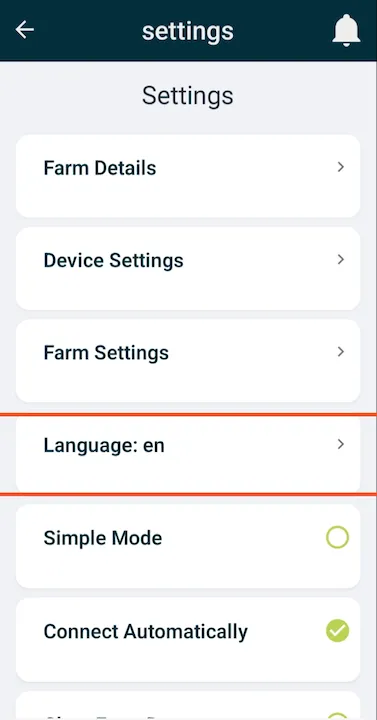
-
Find the
languageoption from the list and tap it.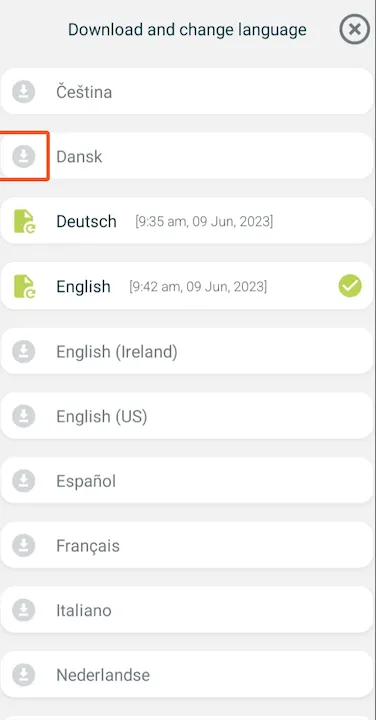
-
For the language you want to use, tap on it to install.

-
Once downloaded, a
green checkwill appear. To activate the language, close the app and reopen it.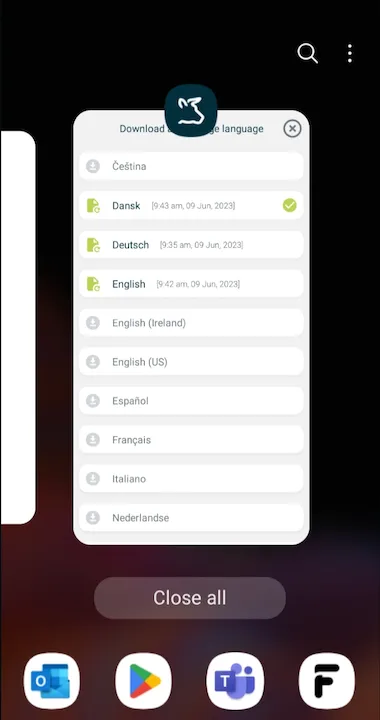
-
The app will now be in the selected language.