How to create a Premix
Introduction
The Premix feature in Feedlync allows farmers to create custom feed mixes by combining multiple ingredients. This guide explains how to create a premix and manage its details.
Creating a Premix
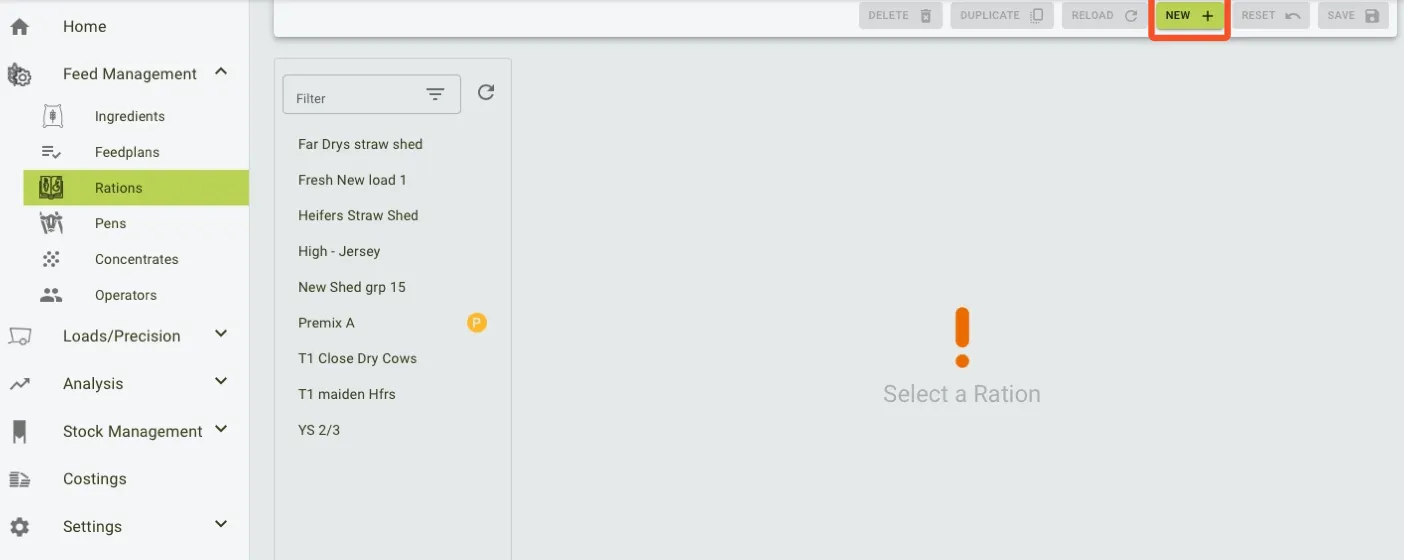
- In the side navigation click Feed Management, and choose Rations. To create a new premix, in the top navigation select New +.
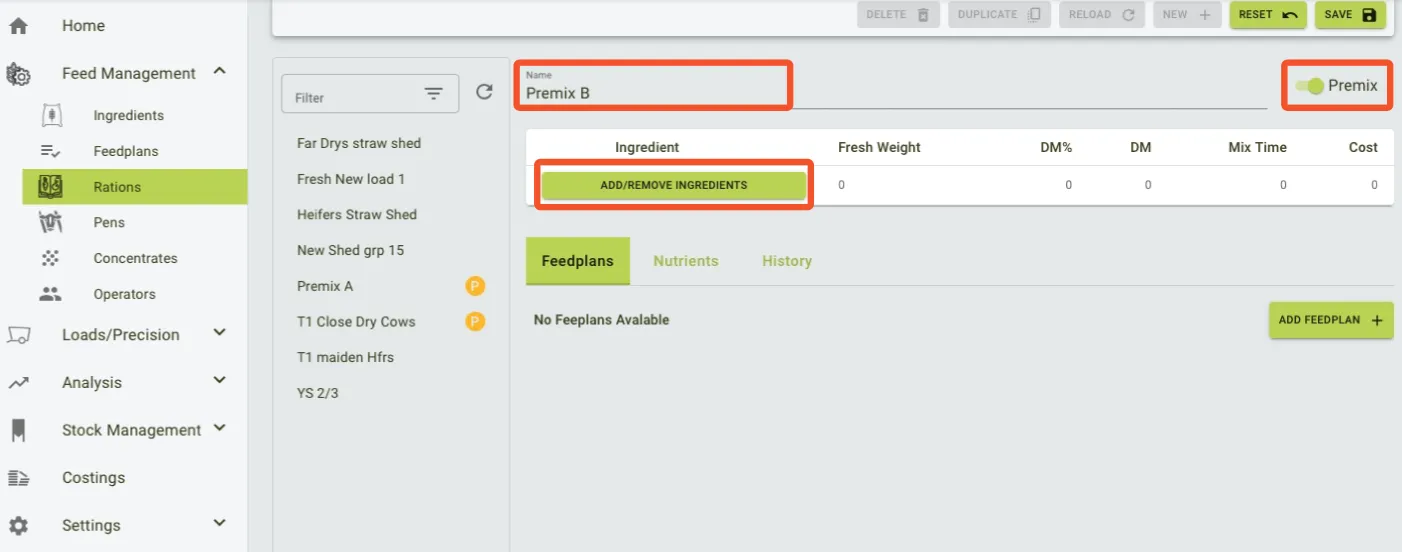
- Name the premix and switch on the premix toggle. Add the necessary ingredients.
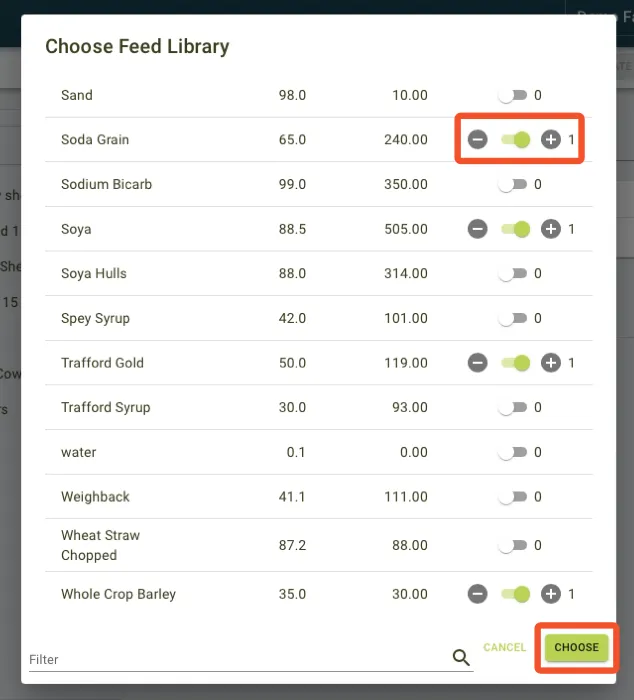
- Select the relevant ingredients from the list by turning on the slider.
- To save the list, click
Choose.
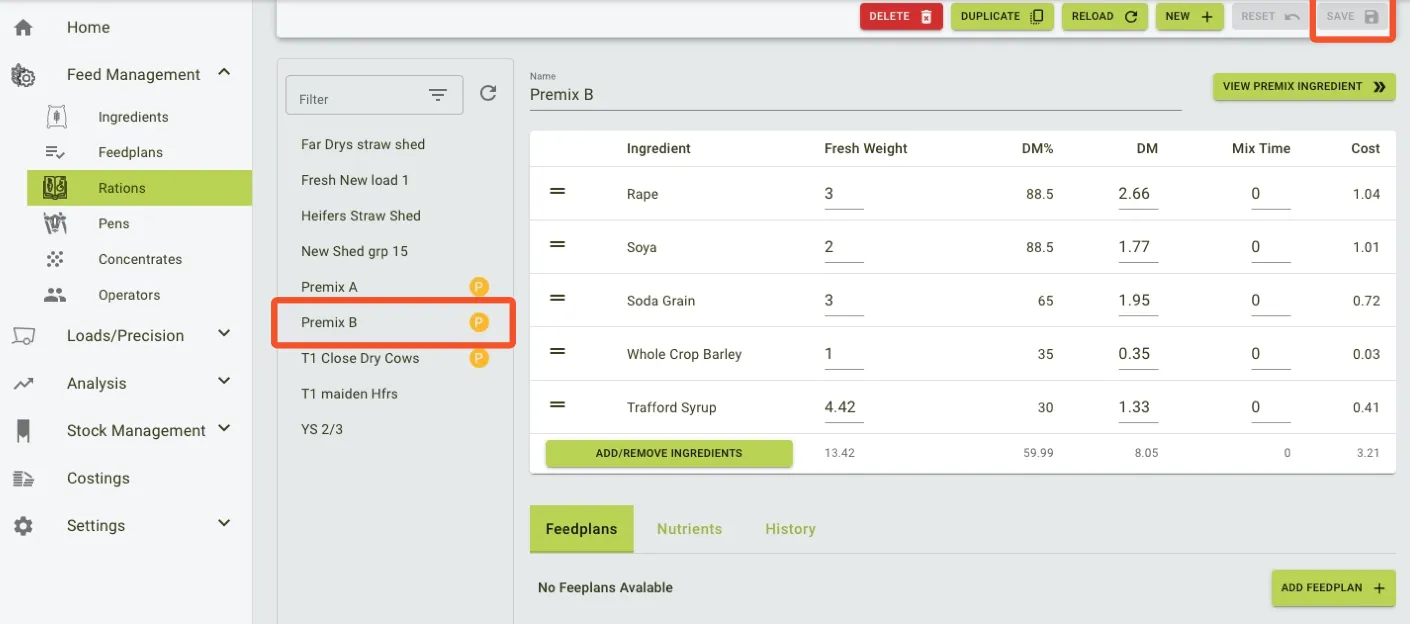
- Add Fresh weight for each ingredient. The amount refers in kilograms or pounds per animal, depending on your farm settings.
- All ingredients must have a higher value, than 0. If you don’t want to include the premix, please remove it from the ingredient in thee list.
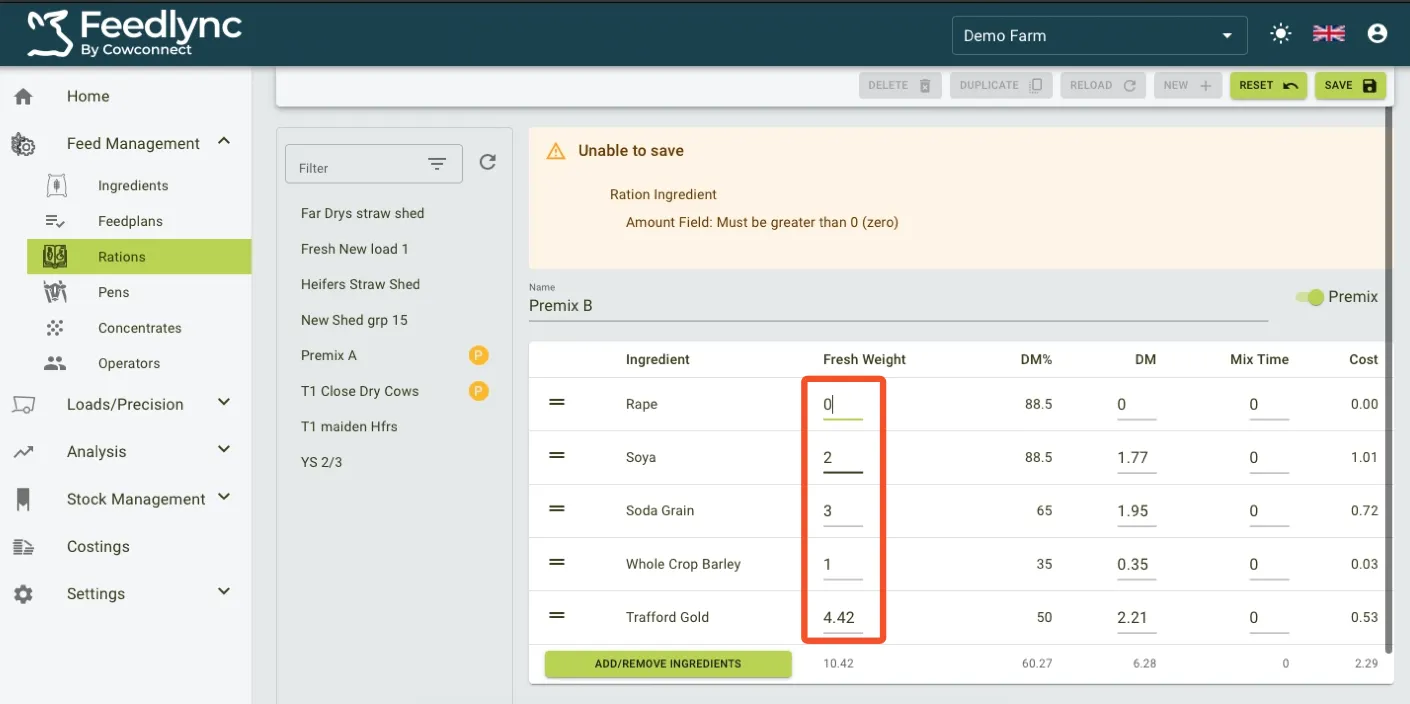
- To adjust the amount, please click the field next to the ingredient, and type in the correct value.
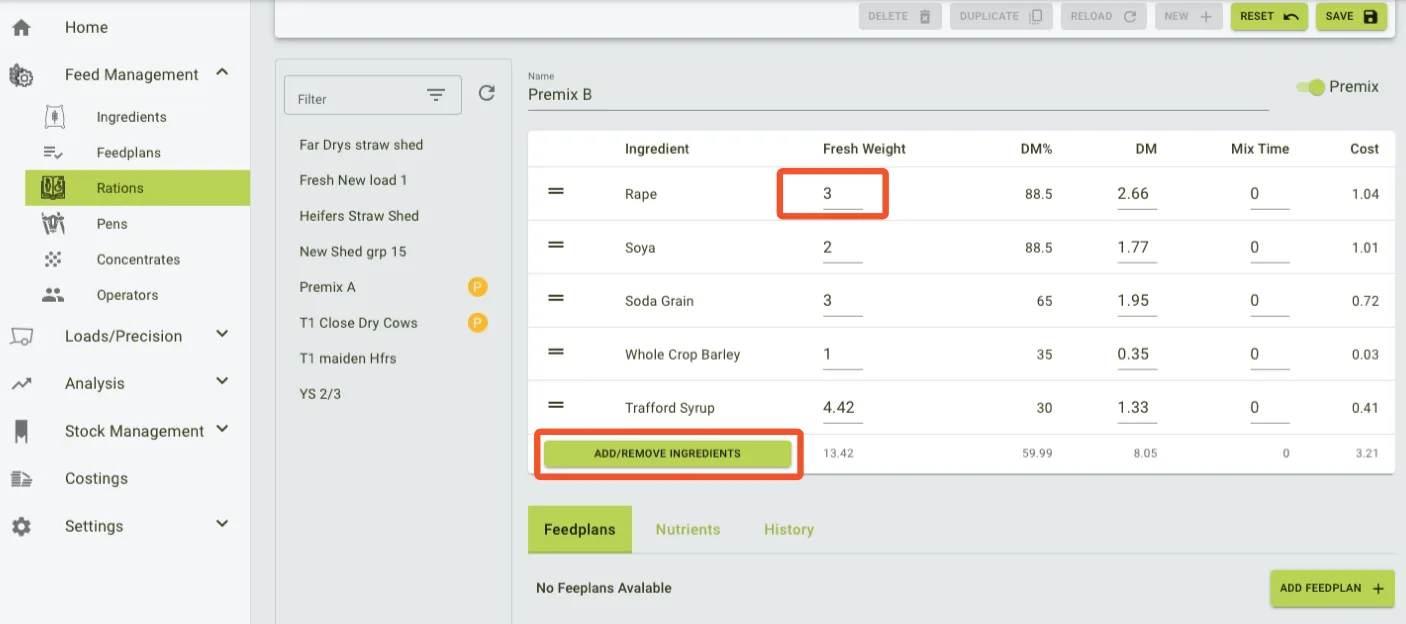
- To remove an ingredient, select
Add/Remove Ingredient, and switch off the slider on the list. PressChooseto save the changes. (See Step 3.)
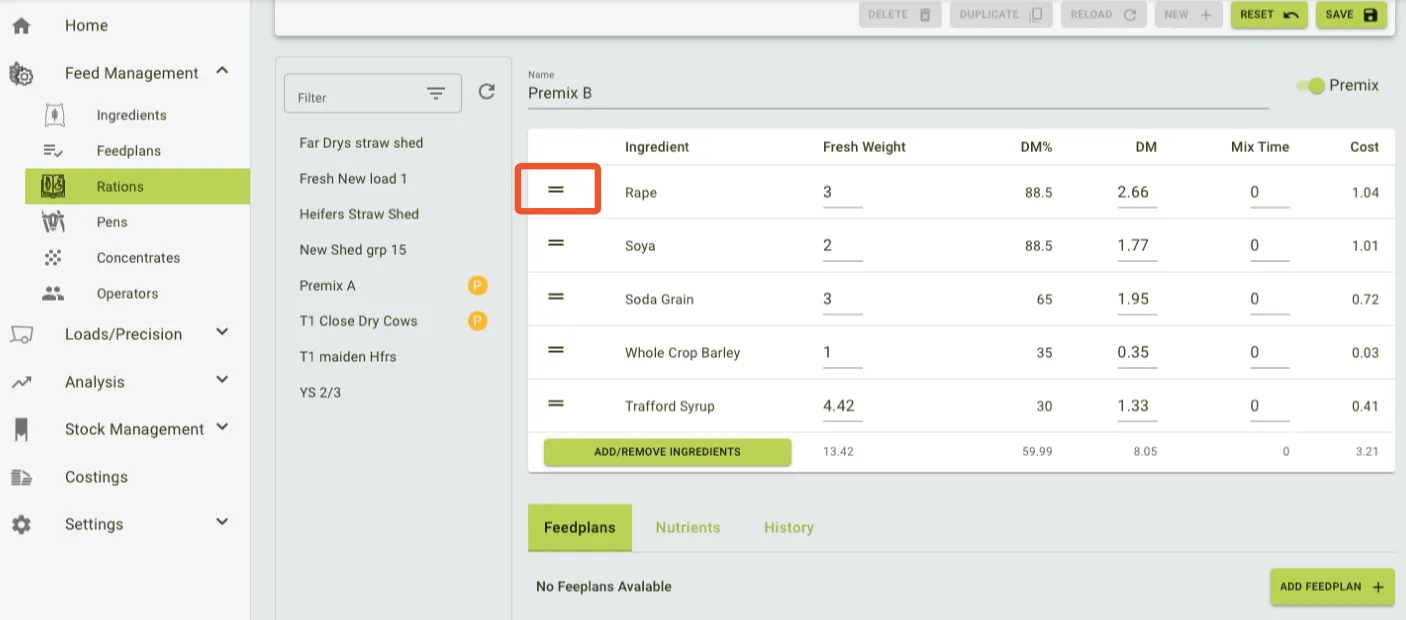
- Change the order of ingredients on the list by holding onto the two lines and dragging the item up or down the list.
- We recommend creating an order on the list, which follows how the ingredients will be loaded into the mixer.
- Once the premix is saved, a yellow circle and a P will indicate which ration is a premix.