Ingredients
Description
The Ingredients section allows users to create, edit, and manage feed ingredients. It provides a centralised platform to define core ingredient details, monitor nutrients, manage inventory, and track historical and future changes. Integration with various modules ensures that feed data is consistent and accurate across the system.
Tabs and Features
1. Details
- Core information about the ingredient can be edited here.
- Users can select a template from the Feed Library module to auto-populate ingredient values.
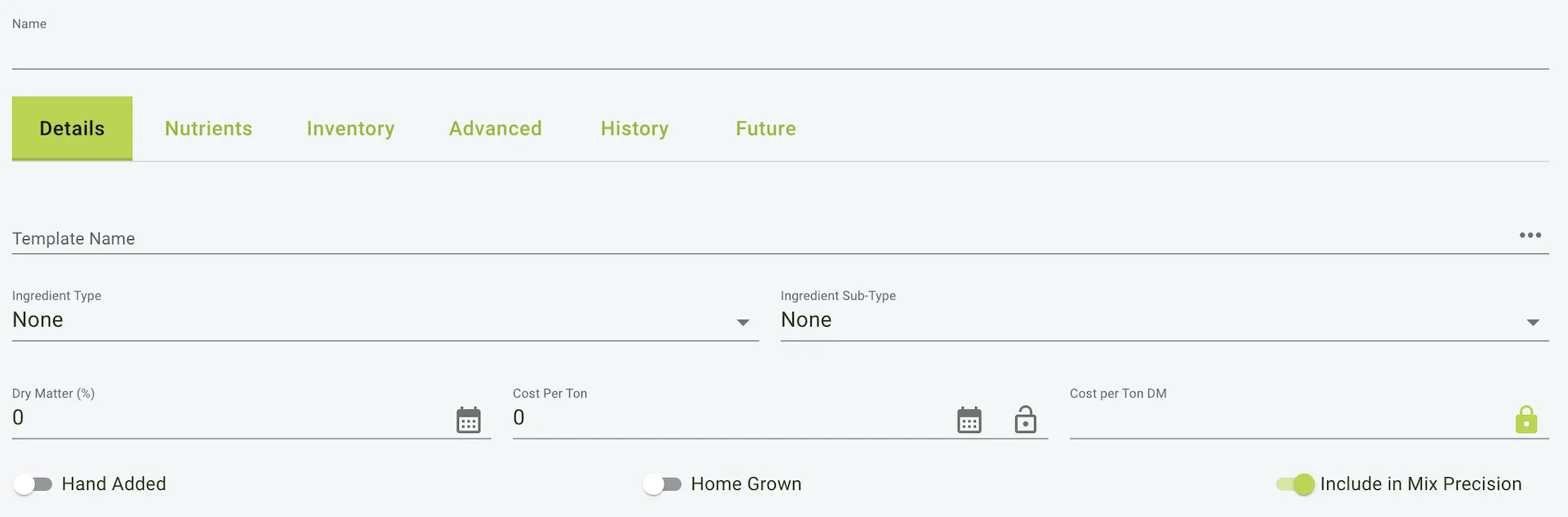
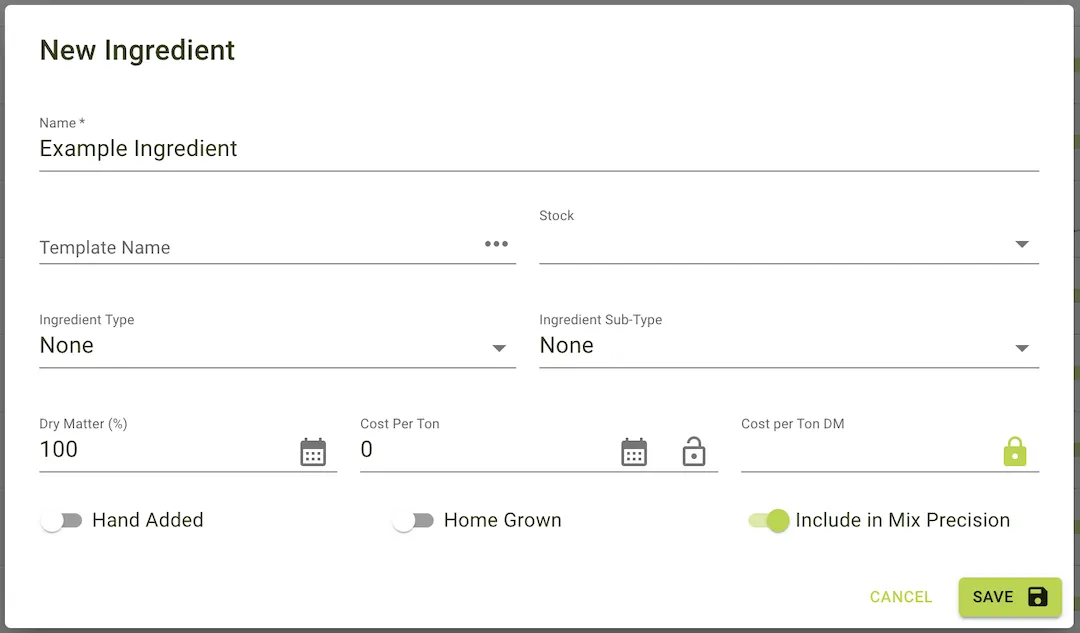
- Fields include:
- Name: Ingredient name.
- Ingredient Type and Sub-Type.
- Dry Matter (%).
- Cost per Ton and Cost per Ton DM.
- Hand Added: Toggle if the ingredient is manually added.
- Home Grown: Indicates if the ingredient is sourced locally.
- Include in Mix Precision: Determines if the ingredient is factored into precision mixing.
2. Nutrients
- Displays nutrient data retrieved from the Feed Library module.
- Feedlync supports two Feed Library modules for nutrient data management.
- Nutrient fields include:
- CP (Crude Protein).
- MP (Metabolizable Protein).
- ME (Metabolizable Energy).
- Oil and Sugar Content.
- Fresh and DM values for each nutrient are displayed with corresponding graphs.
3. Inventory
- Part of the Stock Management module, this tab allows tracking of ingredient stock usage.
- Key fields:
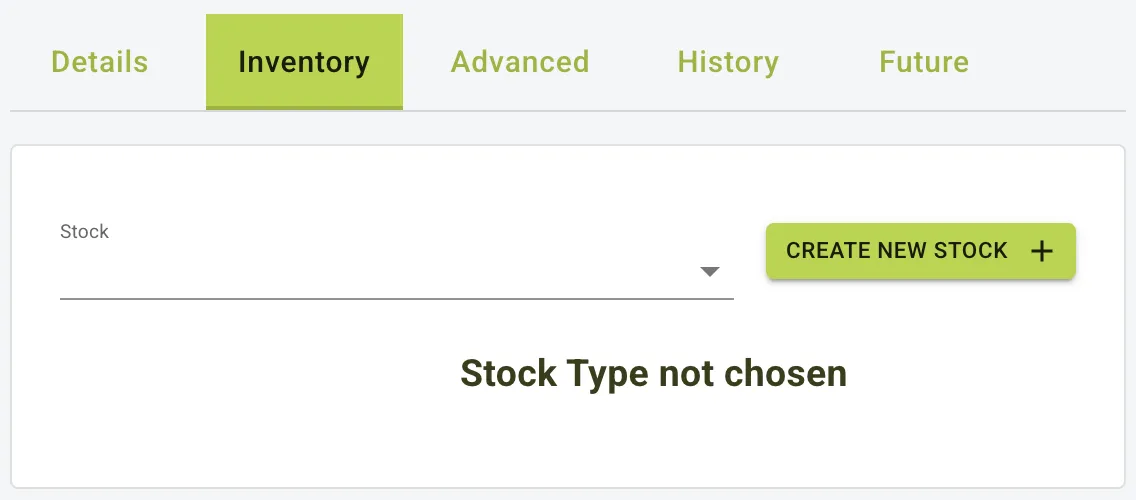
- Stock: The specific stock item.
- Capacity: Maximum storage capacity.
- Actual: Current stock level.
- Users can Create New Stock event or go to ingredients stock page by clicking To Stock.
4. Advanced
- Includes advanced options for ingredient management:
- Recalculate: Adjusts other ingredient quantities based on the selected ingredient’s changes. Refer to the linked documentation for details. Recalculate
- Loading Alarm: Triggers an alarm on the app when a set percentage or weight (kg) is reached.
- Loading Auto-Advance: Automatically jumps to the next ingredient when the set value is reached.
- Convert to Premix: Converts the ingredient into a premix for use in rations.
5. History
- Stores all historical changes made to the ingredient in the Details and Nutrients tabs.
- Users can view previous versions and track modifications over time.
6. Future
- Displays planned changes in ingredient properties, such as dry matter weight adjustments due to Dry Matter Correction.
- For details on Dry Matter Correction, refer to the linked documentation.
7. Usage
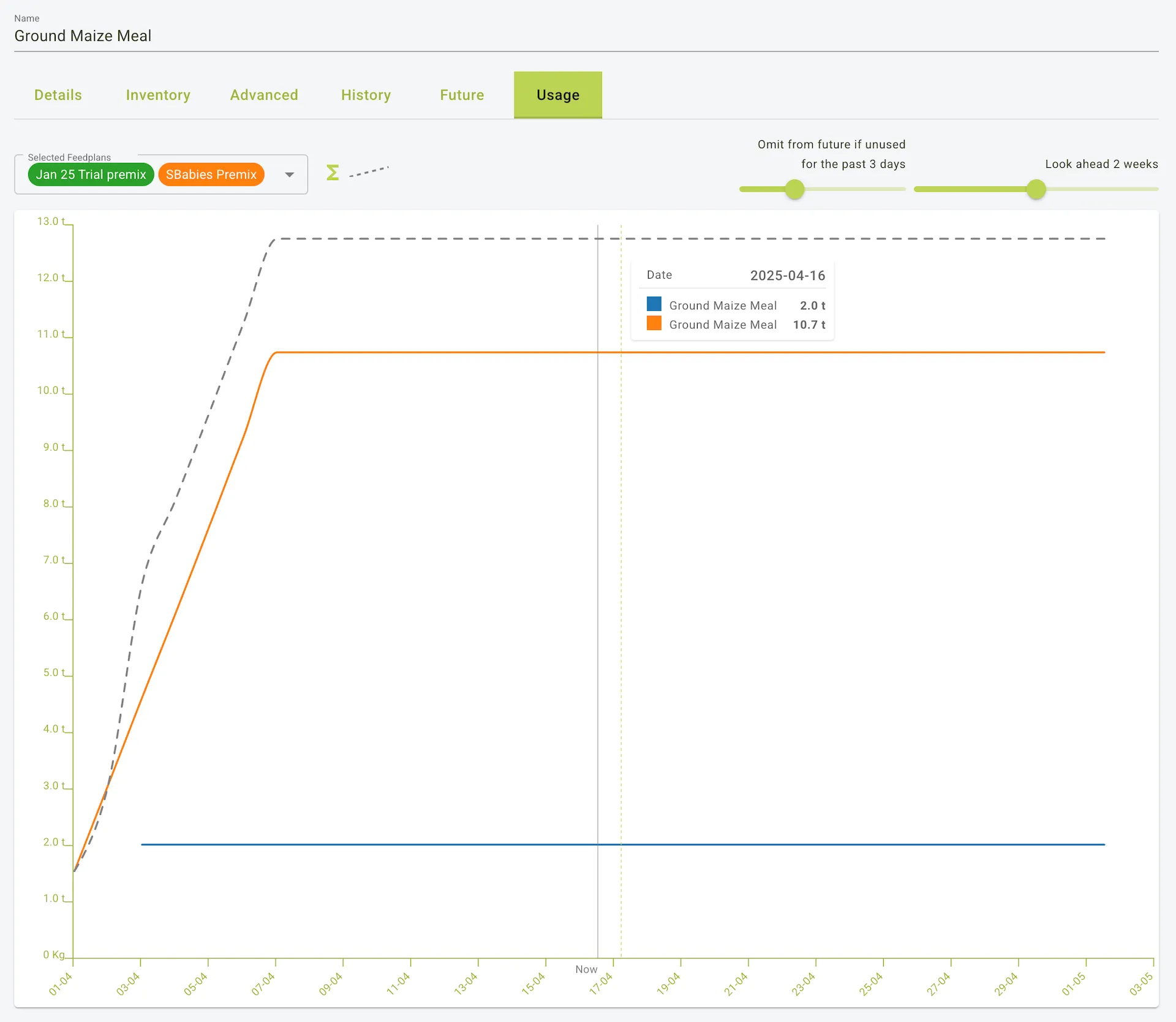
- Displays a chart based on feedplan usage that this ingredient is included in.
- Particularly useful for tracking ingredient usage.
- Includes filtering for:
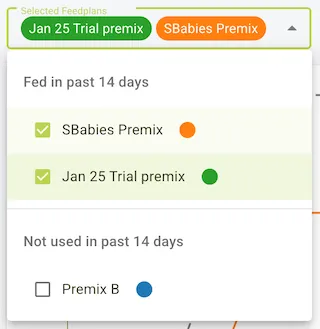
- Feedplan selector: for selecting feedplans that this ingredient is included in that have been used to feed in the past 14 days. It also includes feedplans not used to feed in the past 14 days.
- Omit Slider: Used for omitting data from the future if the ingredient is unused for the past selected number days.
- Future Slider: This is used to look ahead in the future to see how much of the ingredient is used in the next selected number of days.
Integration and Use Cases
- Feed Library Module:
- Automatically populate ingredient details and nutrient data using predefined templates.
- Stock Management Module:
- Track when and where ingredient stock is used, ensuring transparency and accuracy.
Use Case Examples
- Creating a New Ingredient:
- Navigate to the Details tab, input core data, and optionally select a template from the Feed Library.
- Monitoring Nutrients:
- Use the Nutrients tab to analyse ingredient nutrient composition and ensure rations meet livestock requirements.
- Stock Tracking:
- Track ingredient usage and availability using the Inventory tab, and update stock levels as needed.
- Historical Analysis:
- Review past changes in the History tab to evaluate ingredient adjustments and their impact.
- Plan Future Adjustments:
- Use the Future tab to schedule and monitor changes, ensuring proactive feed management.
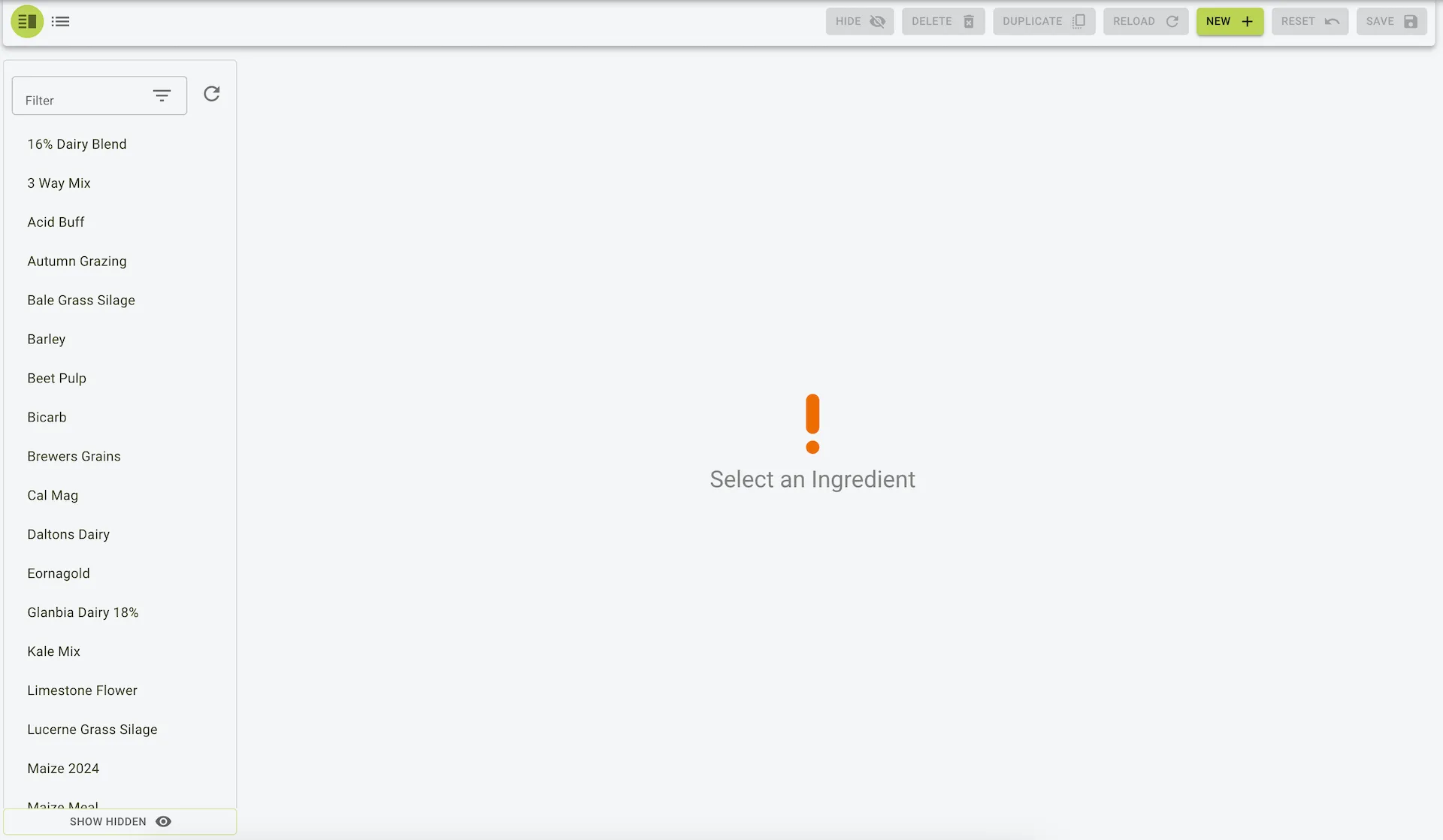
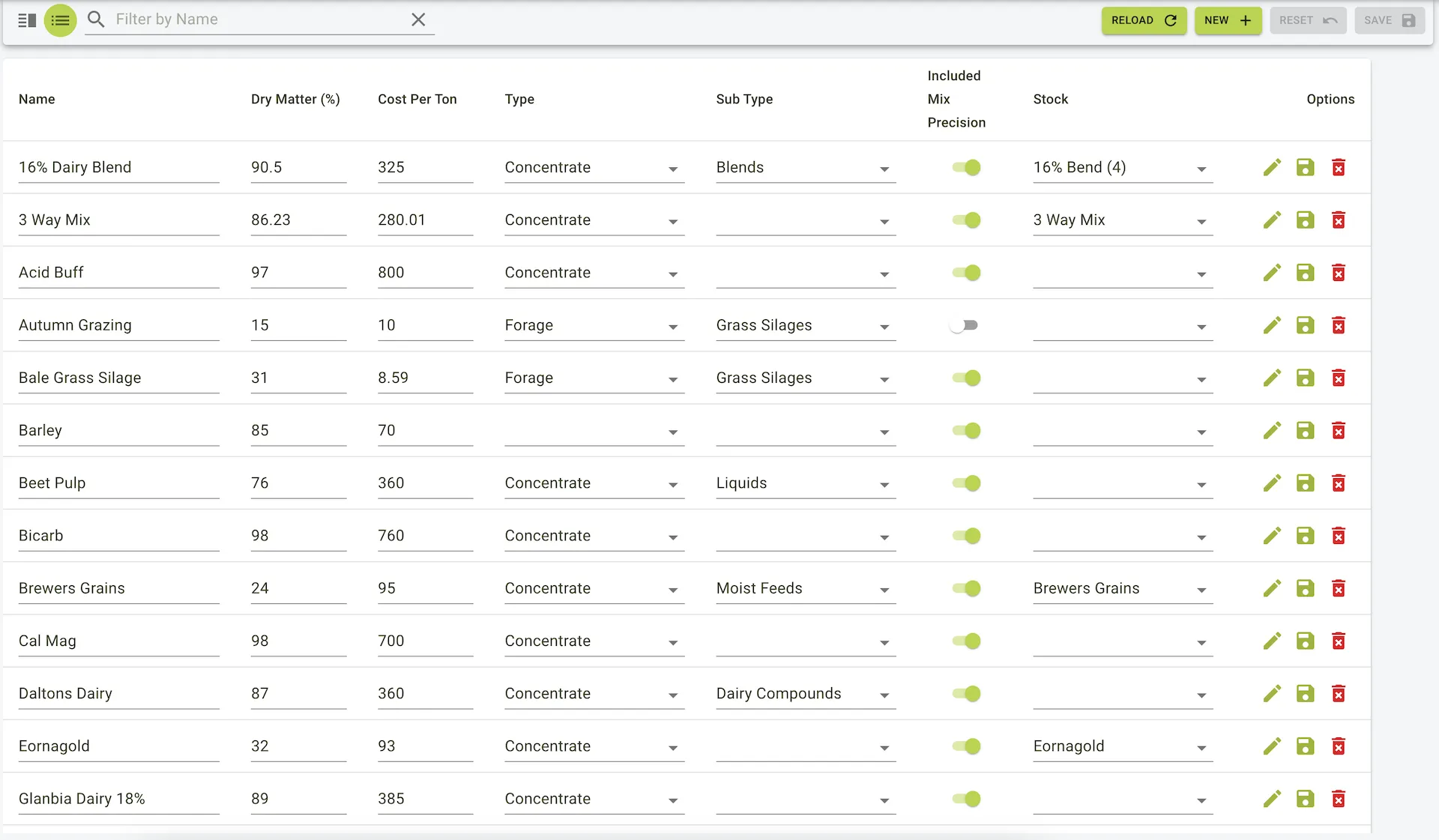
Example view of the ingredients page
Adding an ingredient
To add an ingredient:
- Click the
Newbutton on the toolbar. - Enter the ingredient details.
- Click the
Savebutton on the toolbar to save the ingredient.
- Click the
Newbutton on the toolbar. - Enter the ingredient details in the panel that pops up.
- Click the
Savebutton on the panel to save the ingredient.
Example view of the new ingredient form
Setting a Stock Location
To set a stock location:
- Choose an
Ingredientfrom the sidebar list of ingredients that have been added. - When selected, click on the
Inventorytab. - From the
Inventorytab, click on theStockdropdown and choose aStock. - Click the
Savebutton on the toolbar.
Example view of the inventory tab
Using the Usage tab
The Usage tab provides a chart based on feedplan usage that this ingredient is included in. It is particularly useful for tracking ingredient usage.
Example view of the usage tab
From this view you can see the usage of the ingredient in the past 14 days and how much of the ingredient is used in the next selected number of days.
- You can also select a feedplan from the dropdown to see how much of the ingredient is used in that feedplan.
- You can also use the sliders to omit data from the future if the ingredient is unused for the past selected number of days.
- You can also look ahead in the future to see how much of the ingredient is used in the next selected number of days.
Example view of the usage tab with dropdown
In this example you can see:
- The dropdown allows you to select a feedplan that this ingredient is included in that has been used to feed in the past 14 days.
- It also includes feedplans not used to feed in the past 14 days. Of which are not selected in this example.